Best Methods to Migrate OneDrive to Another OneDrive Account
- Get link
- X
- Other Apps
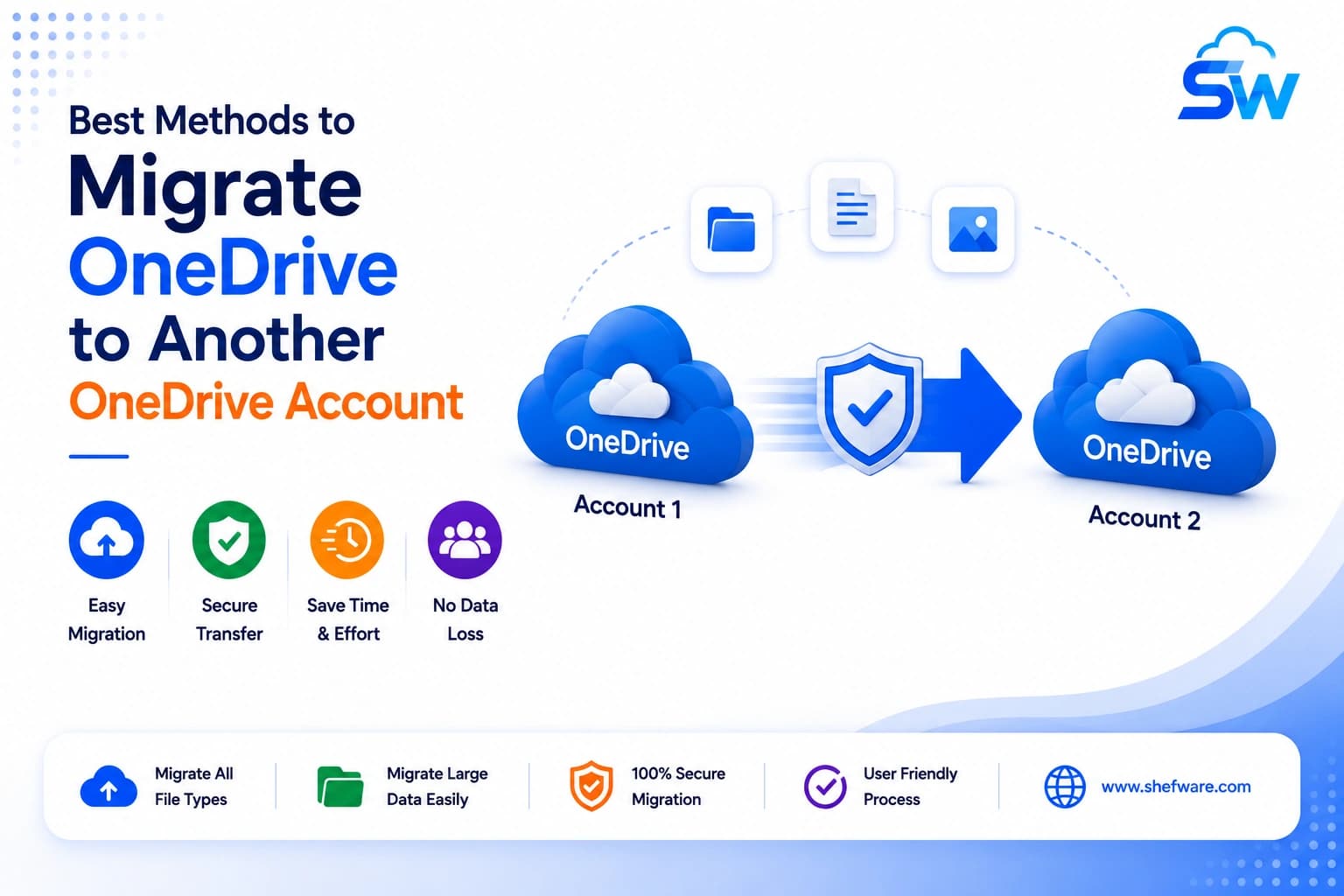
Microsoft OneDrive is a widely used cloud storage platform for single users and businesses. If you are changing organizations, combining accounts, or moving data during a Microsoft 365 tenant migration process, moving files from one OneDrive account to another is difficult. A complete OneDrive Migration needs proper planning to make sure files, folders, permissions, and metadata are kept the same throughout the transfer.
In this blog, we will guide you through the best ways to migrate from onedrive to onedrive account.
Why is there a need for OneDrive Migration?
Companies and individuals move OneDrive data for various reasons:
Moving to a new Microsoft 365 tenant
Company mergers and acquisitions
Replacement of employee account
Domain migration
Tenant-to-Tenant Migration
Data Unification
Business Restructuring
Personal Account Replacement
A safe OneDrive data migration procedure helps prevent data loss and reduce downtime.
Challenges Faced During OneDrive Migration
Before beginning the migration, it is crucial to understand the common issues:
Large file sizes boost the migration time.
Folder permissions might not transfer properly.
Shared links can become invalid.
Version history is lost.
Network disruption can stop large transfers.
Copying manually takes time.
Cross-tenant migrations need other permissions.
These problems can become more important when your require to migrate OneDrive data from one tenant to another.
Manual Methods to Migrate OneDrive to another account
Method 1: Manually Download and Upload Files
This is the simple method for personal users with less data. Given below are the steps:
First, sign in to the source OneDrive account.
Download all needed folders.
Save them locally.
Sign Out.
Now sign in to the destination OneDrive account.
Upload your downloaded files.
Disadvantages
Works very slowly for huge data.
Manual effort is needed.
No saving of permissions.
Possible duplicate files.
There is no incremental migration.
Method 2: Use OneDrive Sync Client
The Microsoft One Erive desktop application can sync files between local storage and cloud accounts. Given below are the steps:
Sync your source account.
Now wait till all the files get downloaded locally.
Disconnect the account.
Connect your destination account.
Copy the synchronized files.
Now wait for the upload completion.
Disadvantages
Need sufficient local storage
Slow for enterprise migrations
Cannot manage tenant migration effectively.
Professional Method: Using Office 365 Migration
For businesses and IT administrators, Shefware Office 365 Migrator provides a solution for OneDrive Migration and Microsoft 365 tenant migration. The software simplifies the migration process by transferring OneDrive data between Microsoft 365 accounts without impacting the original files.
Key Features included:
Complete onedrive to onedrive migration
Supports migrate onedrive from one tenant to another
Bulk user migration
Google drive to onedrive migration tool
Incremental migration
Protects folder hierarchy
Maintains metadata
Advanced migration filters
Secure authentication using Microsoft APIs
Detailed migration reports
Steps to use Shefware Office 365 Migrator
Here given below are the steps for using Shefware Office 365 Migrator. You just need to follow a few steps as presented:
Step 1: Set up Migration
Click on Start migration to generate a new migration job. The job will gather all the migration settings, mappings, schedules, and reports.
Step 2: Connect Source & Destination
Fill in the source and destination Microsoft 365 tenant information, like Tenant ID, Client ID, and Client Secret. The tool checks the connection to ensure both environments are accessible for migration.
Step 3: Map the user Accounts
The tool will automatically map the users between the source and destination tenants. Users can either manually configure or upload the CSV File for bulk user assignment.
Step 4: Allocate Migration Filters
Apply the filters to migrate the specific folders. Under the mailbox, filters like Emails, Calendars, Contacts, and Tasks can be applied. Whereas under OneDrive, filters such as permissions and modified files can be applied.
Step 5: Schedule & Start Migration
Choose to migrate immediately or schedule it for later. Click on Start Migration to transfer the data between the source and destination accounts.
Step 6: Monitor Progress
Track the migration activity on the dashboard, where the status is displayed. Go to the migration history to verify the data accuracy and results.
Conclusion
Selecting the right approach for OneDrive Migration relies on the size and complexity of your project. Manual methods are ideal for transferring a few files, but they instantly become inefficient for business environments or tenant-to-tenant migrations. For secure OneDrive-to-OneDrive migration, a professional solution such as Shefware Office 365 Migrator is the recommended choice.
Frequently Asked Questions (FAQs):
Q1. What is the easiest way to migrate OneDrive to another OneDrive account?
Ans. The easy method is using a professional OneDrive migration tool like Shefware Office 365 Migrator, which transfers files, folders, and metadata with minimal effort.
Q2. Can I migrate OneDrive from one Microsoft 365 tenant to another?
Ans. Yes, you can migrate onedrive from one tenant to another using Microsoft's native tools or an automated migration solution such as Shefware Office 365 Migrator, which simplifies tenant-to-tenant migration.
Q3. Can I migrate Dropbox or Google Drive to OneDrive?
Ans. Yes, modern migration solutions support migrate dropbox to onedrive, dropbox to onedrive migration, migrate google drive to onedrive, google drive to onedrive migration, and box to onedrive migration, permitting businesses to combine cloud storage into Microsoft OneDrive.
- Get link
- X
- Other Apps


Comments
Post a Comment