How to Backup Exchange Online Mailbox using Office 365
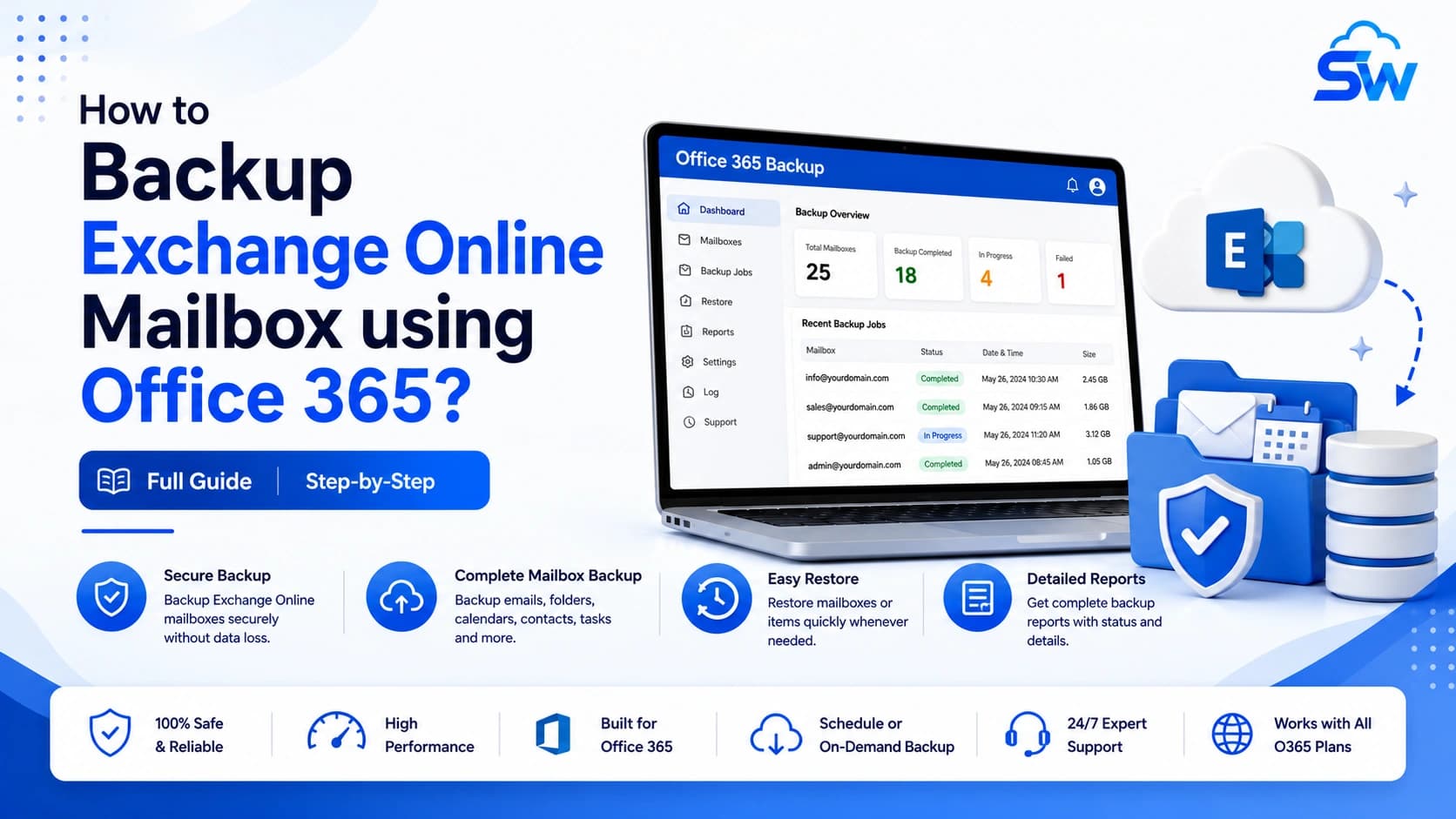
Microsoft Exchange Online, contained within Microsoft 365, provides businesses a cloud-based email platform for safe communication. While Microsoft offers high accessibility, it is crucial to know the features not as a substitute for a backup solution. Unexpected deletion, ransomware attacks, internal threats, retention policy restrictions, and compliance needs can lead to permanent loss of data.
In this blog, we will guide you through how to backup exchange online, its importance, manual methods, and a professional way to backup exchange online mailbox.
Why is there a need to Backup Exchange Online?
Some organizations think Microsoft automatically backs up all mailbox data. But Microsoft follows the Shared Responsibility Model, which means customers are held responsible for protecting and recovering their own data. A structured online backup exchange technique helps in:
-
Recovering suddenly deleted emails.
-
Protecting against ransomware attacks.
-
Meeting the legal and regulatory compliance needs.
-
Restoring historical mailbox data.
-
Preventing data loss caused by employee errors.
-
Maintaining business continuity.
If you have a small business or a large company, having an Exchange Online backup ensures business-sensitive emails stay protected.
What kind of data do you need to back up?
An overall backup for Exchange should contain:
-
Emails
-
Calendar
-
Contacts
-
Tasks
-
Journals
-
Attachments
-
Notes
-
Shared Mailboxes
-
Archive Mailboxes
-
Public Folder Mailboxes
Having entire Exchange Online backups permits fast recovery when needed.
Manual Methods for Online Exchange Backup
Here are various manual methods for how to backup exchange online. Given below are same of the manual methods presented:
Method 1: Exporting Exchange Online Mailbox Using Outlook
This is the most common manual method. Given below are certain steps presented:
-
Open Microsoft Outlook.
-
Allocate Exchange Online Account
-
Click on File, Open and Export, then Import/Export.
-
Choose Export to a file.
-
Select Outlook Data File.
-
Choose the mailbox or folders you wish to export.
-
Select a destination and click Finish.
Disadvantages
This manual method includes some of the limitations presented below:
-
Needs Outlook installation.
-
Manual procedure for every mailbox.
-
Consumes time for multiple users.
-
Not ideal for enterprise environments.
-
No scheduling.
Method 2: Using Microsoft Purview ediscovery export
Organizations with suitable licensing can export mailbox content using Microsoft Purview. Let’s see the steps below:
-
Open the Microsoft Purview compliance portal.
-
Generate an eDiscovery case.
-
Add the locations of the mailbox.
-
Perform a content search.
-
Export search results.
Disadvantages
-
Difficult allocation.
-
Needs administrative permissions.
-
Ideal fr legal investigations.
-
Not suitable for daily backup exchange online mailbox functions.
Professional Method to Backup Exchange Online
For businesses maintaining various Microsoft 365 users, using a backup solution is the safest and most effective alternative. The Shefware Office 365 Backup tool offers a safe and automatic solution to backup office 365 exchange online mailboxes without difficult allocations. It helps organizations protect business emails while making sure fast recovery whenever data loss happens.
Steps to use Shefware Office 365 Backup
Given below are the steps mentioned in detail for using the Shefware Office 365 Backup solution:
Step 1: Launch the Tool
Open the Shefware Office 365 Backup Tool and click Create Backup Job.
Step 2: Enter Job Details
Enter a Job Name, select or add your Microsoft 365 account, and click Next.
Step 3: Select the Backup Source
Choose the workload to back up, such as Exchange Online, Microsoft 365, or SharePoint, then click Next.
Step 4: Select Users and Data
Choose the users, select the mailbox or other data, and click Next.
Step 5: Configure Backup Options
Select an immediate or scheduled backup (Daily, Weekly, or Monthly) and click Next.
Step 6: Choose Backup Destination
Select the folder where you want to save the backup and click Next.
Step 7: Create the Backup Job
Review the settings and click Create to generate the backup job.
Step 8: Backup Job Created
After successful creation, click Go to Jobs to view and manage your backup jobs.
Step 9: Manage Backup Jobs
View all backup jobs, check their status, and click Run to start a backup.
Step 10: Monitor Backup Progress
Track the backup progress in real time and verify the completion report once the process finishes.
Conclusion
Although Microsoft backup online exchange offers excellent availability, it does not replace the need for independent backups. Data loss can still occur due to accidental deletion, cyberattacks, retention policy limitations, or user mistakes. While manual methods work for occasional exports, they are not suitable for routine or large-scale backup operations. The Shefware Office 365 Backup Tool provides a faster, more secure, and automated way to back up Exchange Online mailbox data.
Frequently Asked Questions (FAQs):
Q1. How do I backup Exchange Online mailbox?
Ans. You can manually export your mailbox using Microsoft Outlook or Microsoft Purview. However, for automated and secure backup Exchange Online operations, a dedicated solution like the Shefware Office 365 Backup Tool is recommended.
Q2. Does Microsoft provide Exchange Online backups?
Ans. Microsoft provides data redundancy and retention features, but it does not offer traditional long-term Exchange Online backups for all recovery scenarios. Organizations are responsible for maintaining independent backups.
Q3. What is the best Exchange Online backup solution?
Ans. The Shefware Office 365 Backup Tool is an efficient Exchange Online backup solution that supports bulk mailbox backup, multiple export formats, incremental backups, scheduling, and secure recovery of Microsoft 365 Exchange data.
https://www.osttopst.us/


Comments
Post a Comment