How to recover data from PST Files using PST Password Recovery Tool
https://www.shefware.com/products/pst-password-recovery
How to recover data from PST Files using PST Password Recovery Tool
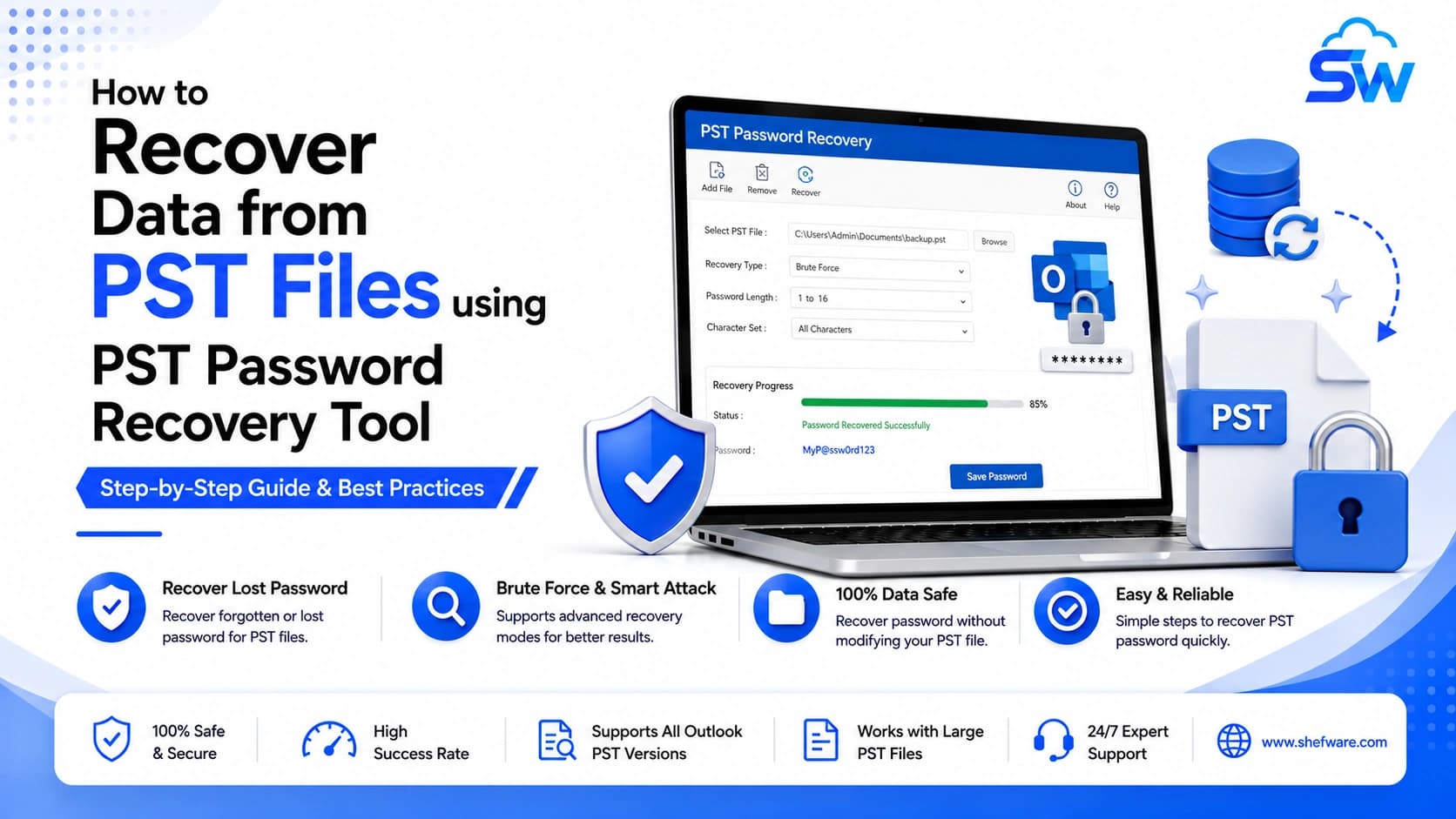
How to recover data from PST Files using PST Password Recovery Tool
PST Files are known to store Outlook mailbox data such as emails, contacts, calendars, tasks, etc and enable offline access to users. Since PST files store critical data, users protect these files with passwords to prevent any unauthorized access. However, forgetting the password can make it challenging to open the PST File and access it. With a professional PST Password Recovery Tool, users can recover or remove the password from the Outlook PST File and regain access to the mailbox. In this blog, users will be guided on how to recover data from password-protected PST files, why Password recovery is necessary, and how the Shefware PST Password Recovery Tool works.
What is a PST file?
A PST file, or Personal Storage Table, is an Outlook data file that stores the mailbox data of Outlook, including emails, calendars, contacts, tasks, journals, notes, and attachments, etc. It helps in reducing the size of the mailbox data by storing the data in local storage. It is associated with POP accounts, and it is used for manual backups and archiving. PST files can only be opened and accessed in Outlook, as they are part of Microsoft’s proprietary file format.
Why do Users need PST Password Recovery?
There are multiple reasons why PST Password Recovery Files are needed:
-
Recover access to important emails, contacts, calendars, and attachments.
-
Access old or archived Outlook PST files when the password is not known or forgotten.
-
Regain access without affecting the original PST file data.
-
Restore business continuity by quickly regaining access to critical mailbox data.
-
Remove passwords from password-protected files to easily access the files.
Use case scenarios of PST Password Recovery Tool
-
Recover access to password-protected PST files when the original password has been forgotten.
-
Open old or archived locked PST files.
-
Access business PST files of former employees in case the password is unavailable.
-
Restore access to critical emails and contacts, calendars without delays.
-
Access protected Outlook data for audits, investigations, or regulatory compliance purposes.
Users of PST Password Recovery Tool
-
IT Administrators
The tool enables IT Administrators to manage password-protected PST files for users during maintenance, troubleshooting, or migration.
-
System Administrators
The tool enables System Administrators to restore access to Outlook data files without compromising data integrity.
-
Managed Service Providers
The tool assists clients in managing Outlook PST files as part of IT support and migration services.
-
Legal Compliance Teams
The tool allows Legal Compliance Teams to access password-protected PST files for audits and investigations.
How a PST File Password Recovery Tool Helps?
A PST File Password Recovery Tool is designed to recover, reset, or remove passwords from Outlook PST Files without changing the mailbox data. It helps in:
-
Fast password recovery
-
Safe processing
-
Preserving original mailbox data
-
Supports large PST files
-
Easy-to-use interface
-
No technical expertise required
Manual methods to recover a PST Password
If the user still remembers the existing password, you can change it by following the steps:
-
Open Microsoft Outlook.
-
Go to Files, click on Account Settings, and then click on Account Settings.
-
Choose the Data Files Tab.
-
Select the PST File and click Settings
-
Click Change Password.
-
Enter the new password.
Why Choose Shefware Outlook PST File Password Recovery Tool?
Shefware PST Password Recovery Tool is an advanced and efficient solution designed to provide secure, reliable, and hassle-free data recovery, reset, or removal of passwords from Outlook PST files. The tool performs PST File Password Recovery without altering the original mailbox data, ensuring the emails, contacts, calendars, tasks, etc stay intact throughout the conversion process. The tool supports ANSI and Unicode PST Files and performs Outlook PST password Recovery. The tool allows both technical and non-technical users to recover, reset, or remove passwords without data loss.
Features of Shefware PST Password Recovery Tool
-
Support Multilingual Password
-
Remove passwords from the files seamlessly.
-
Reset a new password
-
Supports all versions of Outlook.
-
Easily access the password-protected PST File
-
Recover any bulk PST File Password without data loss.
-
Preserves and maintains original data.
How to Recover Data from PST Files with Shefware PST Password Recovery Tool?
Follow the simple steps to recover, remove, and reset the passwords from the PST File.
-
Download and install Shefware PST Password Recovery Tool.
-
Browse and upload PST Files.
-
Click on the Recover, Reset, or Remove button and click Process to begin retrieving, resetting, or removing the password.
-
Once completed, access your PST file in Outlook.
Conclusion
Losing access to password-protected PST files may be challenging, but it can be recovered easily using a professional Outlook PST file password recovery tool. The tool performs PST file password recovery and enables users to reset, remove, or recover passwords from PST files. Choosing the Shefware PST Password Recovery Tool ensures complete data recovery after removing, retrieving, or resetting the password from the PST files.
Frequently Asked Questions
Q1. Can I recover data from a password-protected PST file?
Ans. Yes, the Shefware PST Password Recovery Tool enables users to remove, recover, or reset the password from the PST files.
Q2. Does password recovery affect my Outlook data?
Ans. No, a professional PST password recovery tool cannot affect the original Outlook data. Choose Shefware PST Password Recovery Tool to seamlessly recover the data from password-protected PST files.
Q3. Is the software suitable for large PST files?
Ans. Yes, the Shefware PST Password Recovery Tool is suitable for different files, regardless of the size, without compromising data integrity.


Comments
Post a Comment