How to Repair Corrupt Video Files Online for Free: A Complete Guide to Shefware Video Repair
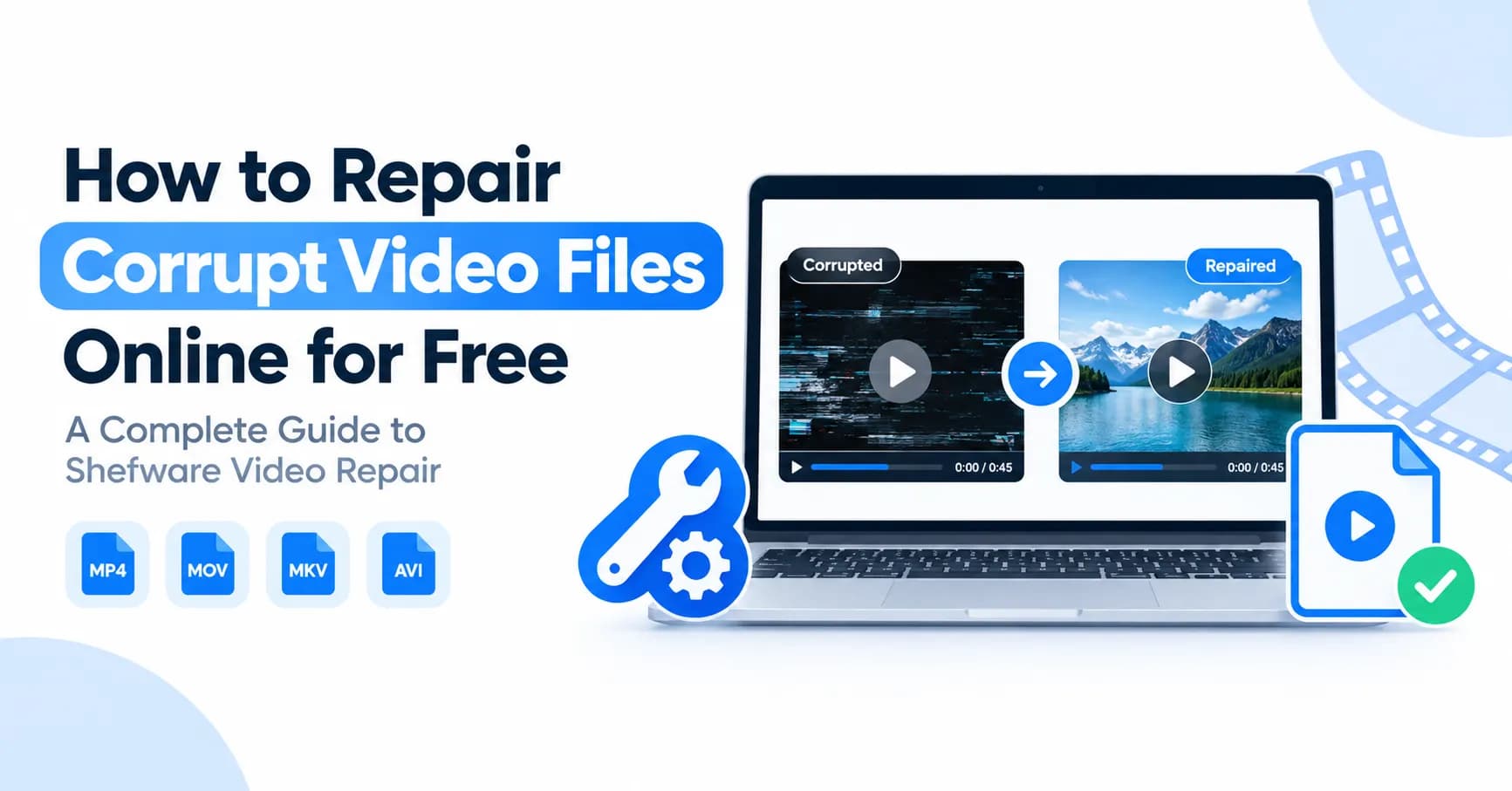
There's nothing more frustrating than opening a video file — one that might hold your wedding footage, a drone shot, or important CCTV evidence — only to find it won't play, freezes halfway through, or shows nothing but a black screen. Video corruption can happen for dozens of reasons: an interrupted transfer, a sudden power loss while recording, a failing memory card, or a bad file conversion. Whatever the cause, the good news is that you don't need expensive software or technical expertise to fix it. With Shefware Online Video Repair, you can repair corrupted videos directly in your browser, for free, in just a few clicks.
In this guide, we'll walk through why videos get corrupted, how online video repair works, and how you can use Shefware's tool to recover your unplayable video files today.
Why Do Video Files Get Corrupted?
Before jumping into the fix, it helps to understand what causes video corruption in the first place. Some of the most common culprits include:
-
Interrupted recording or transfer — pulling out a memory card or losing power mid-recording
-
Storage device errors — failing SD cards, USB drives, or external hard disks
-
Improper file conversion — using unreliable converters that damage the video's internal structure
-
Software crashes — an editing app or media player closing unexpectedly while a file is open
-
Bad sectors or malware — corrupted storage media or malicious software altering file data
Regardless of the cause, the result is usually the same: a video file that won't open, plays with glitches, or is missing audio or picture entirely.
What Is Shefware Online Video Repair?
Shefware Online Video Repair is a browser-based tool built to repair corrupt, damaged, and unplayable videos without requiring any software download. It's designed for anyone — from casual smartphone users to professionals working with drone, dashcam, or CCTV footage — who needs a fast, secure way to recover a broken video file.
The tool supports an extensive list of video formats, including MP4, MOV, MKV, AVI, WMV, FLV, WEBM, 3GP, AVCHD, HEVC, and many more, making it one of the more versatile online video repair tools available.
Common Video Problems Shefware Can Fix
Not all video corruption looks the same, and Shefware's repair engine is built to handle a wide range of issues, including:
-
Video won't play — files that throw playback errors or fail to open at all
-
Black screen video — video plays audio but shows no picture
-
No sound on video — missing, muted, or distorted audio tracks
-
Video flickering — flashing frames or unstable playback
-
Blurry or pixelated video — distorted, low-clarity footage
-
Audio and video out of sync — mismatched timing between sound and picture
Whether your damaged video came from a DSLR, smartphone, action camera, drone, dashcam, or security camera, the tool is built to handle recovery across virtually any recording device and storage medium (SD cards, SSDs, USB drives, and external hard drives included).
How to Repair a Corrupted Video Online: Step-by-Step
One of the biggest advantages of Shefware's tool is its simplicity. You don't need any video editing knowledge — just follow these three steps:
Step 1: Upload Your Corrupt Video
Select the damaged or unplayable video file from your device and upload it through Shefware's secure online interface. There's no software to install — everything happens in your browser.
Step 2: Let the Tool Analyze and Repair the File
Once uploaded, Shefware's upgraded repair engine automatically scans the video, detects the underlying issue, and fixes the corruption — whether it's a playback error, sync issue, or missing audio.
Step 3: Preview and Download the Restored Video
Before downloading, you can preview the repaired video to confirm it plays correctly. Once you're satisfied, download the fully restored file and get back to using it as normal.
Is It Safe to Repair Videos Online?
Privacy is a common concern when uploading personal or sensitive footage to any online tool. Shefware addresses this with 256-bit SSL encryption during upload and processing, and states that uploaded data is securely deleted after conversion. This makes it a reasonably safe option for repairing personal videos, business recordings, or even sensitive footage like dashcam or CCTV clips — though as with any online service, it's worth reviewing the platform's privacy policy before uploading highly confidential material.
Free vs. Paid: Which Shefware Plan Should You Choose?
Shefware offers a tiered pricing structure depending on how many files you need to repair:
|
Plan |
Price |
Files Included |
Best For |
|---|---|---|---|
|
Free Demo |
Free |
5 files (10–40 sec clips) |
Testing the tool before committing |
|
Premium |
$99/year |
20 files, no size limit |
Regular personal use |
|
Business & Enterprise |
$299/year |
200 files, no size limit |
Businesses, studios, or high-volume users |
If you only have one or two damaged clips to fix, the free demo is a great way to test whether the tool can successfully recover your footage before upgrading to a paid plan for larger or more frequent repairs.
Tips to Prevent Future Video Corruption
While online video repair tools are a great safety net, a few habits can reduce the chances of corruption happening again:
-
Always safely eject storage devices before removing them.
-
Keep your camera or recording device's battery charged during long recordings.
-
Regularly back up important footage to multiple storage locations.
-
Avoid using questionable third-party video converters.
-
Replace aging or failing memory cards and hard drives promptly.
Final Thoughts
Corrupted video files don't have to mean lost memories or lost data. With a tool like Shefware Online Video Repair, you can fix unplayable, blurry, black-screen, or out-of-sync videos directly from your browser — no downloads, no technical skills, and no long waiting times. Whether it's footage from a smartphone, drone, dashcam, or security camera, there's a good chance it can be recovered in just a few simple steps.
If you're dealing with a damaged video right now, start with the free demo, preview the results, and see your footage restored before committing to a paid plan.
Have more questions about online video repair? Check out the FAQ section on Shefware's website or reach out to their support team for personalized help.https://www.shefware.com/products/video-repair


Comments
Post a Comment