JSON Formatter and Converter Guide: How to Format, View, and Convert JSON to CSV (2026)
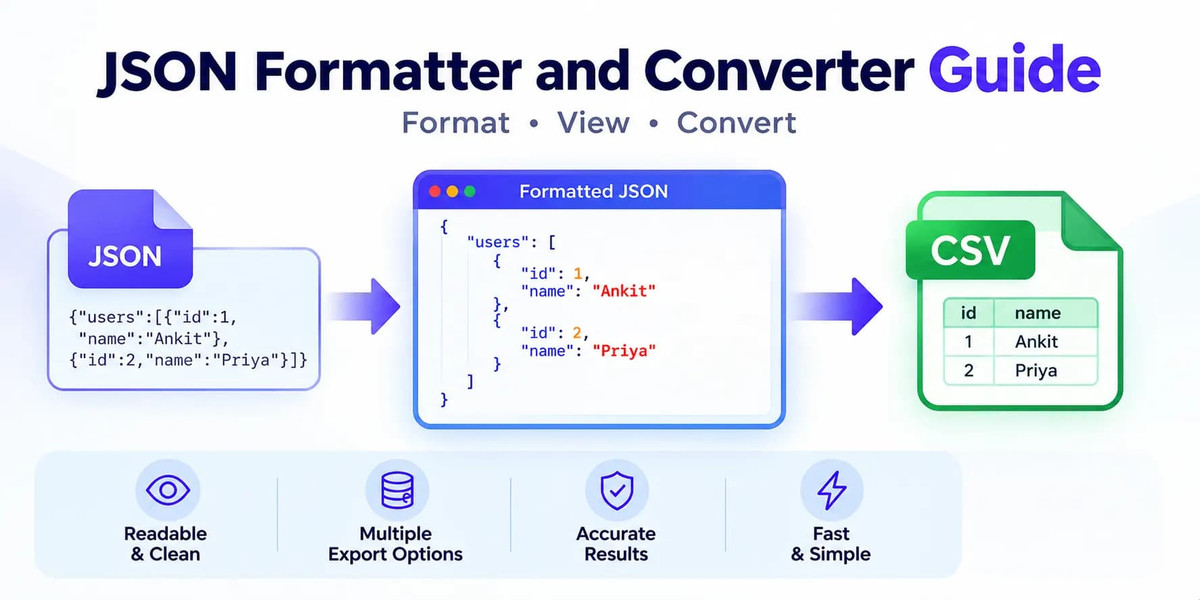
JSON has become the default language of the web. APIs return it, apps store settings in it, and
e-commerce platforms export entire product catalogs as .json files. It is compact and efficient for machines to read — but it is not exactly friendly for humans, especially once a file has hundreds of nested objects, arrays, and nested arrays inside arrays. That is usually the moment someone starts searching for a JSON formatter or a way to convert JSON to CSV so the data is actually usable.
This guide covers both sides of that problem: how to format and read JSON data properly, and how to convert JSON files into formats like CSV, XML, or a database file without breaking the structure.
Why JSON Is Hard to Read in Its Raw Form
Open a raw JSON file in a plain text editor and you will usually see one of two things: either everything crammed onto a single line, or a wall of brackets and indentation that is hard to follow visually. JSON is built for machines, not for people scanning through it manually.
This becomes a real problem when:
A developer needs to debug an API response and can't tell where one object ends and another begins
A business analyst receives a JSON export from an e-commerce platform and needs to check it for accuracy
Someone needs to verify customer records, inventory data, or order details before importing them elsewhere
Nested arrays and objects make it unclear how the data is actually structured
This is exactly where a JSON formatter becomes useful — it takes messy or minified JSON and displays it in a clean, indented, readable structure so keys, values, objects, and arrays are easy to follow.
JSON Formatter Online vs. a Desktop JSON Converter
A quick search for "JSON formatter online" brings up dozens of free web-based tools. They are convenient for a quick, one-off look at a small JSON snippet, but they come with real limitations once the work gets
more serious:
Privacy concerns: Pasting business, customer, or financial data into a random website is risky, especially for regulated industries.
No conversion, just formatting: Most online formatters only pretty-print the JSON — they do not actually convert it into a usable format like CSV or a database file.
File size limits: Large JSON exports, especially from e-commerce or analytics platforms, often exceed what a browser-based tool can handle.
No batch processing: Formatting one file at a time is fine occasionally, but it does not scale if you are dealing with dozens of exports.
A desktop JSON converter solves all four issues at once: it works offline, handles large files, processes multiple files together, and — most importantly — actually converts the data into the format you need next, not just a cleaner-looking version of the same JSON.
Why People Search for a "CSV to JSON Converter" (and What They Actually Need)
Many people searching for a CSV to JSON converter are really trying to solve one of two connected problems: turning JSON data into a spreadsheet-friendly CSV file for reporting, or the reverse — turning tabular data into JSON for an application or API. Both directions come up constantly in day-to-day business and development work.
If your JSON data needs to end up in Excel, Google Sheets, or any reporting tool, what you are really looking for is a reliable way to convert JSON to CSV while keeping every field, value, and nested detail intact. This is one of the most common reasons businesses look for a proper JSON converter in the first place — product catalogs, order histories, and customer records are frequently exported as JSON but need to be reviewed or shared as CSV.
How to Convert JSON Files with Shefware JSON Converter
The Shefware JSON Converter is a Windows desktop tool built to handle exactly this kind of work — formatting, previewing, and converting JSON files into 17 different output formats, including CSV, XML, SQL Script, DB, DBF, Parquet, YAML, PDF, DOCX, XLSX, and more.
Here is how the process works.
Step 1: Download and Install the Software
Download and install the JSON Converter on your Windows PC. It is compatible with a wide range of Windows versions, from modern systems to older enterprise environments.
Step 2: Add Individual Files or an Entire Folder
Use the "Add Files" or "Add Folder" option to load one JSON file or an entire batch at once — useful when working with recurring data exports from an e-commerce platform, CRM, or internal application.
Step 3: Preview the JSON Data Before Converting
This is where the built-in JSON formatter comes in. Before converting anything, you can preview the file's keys, values, objects, and arrays in an organized, readable layout. This makes it easy to confirm the data is correct, understand how nested information is structured, and avoid converting the wrong file.
Step 4: Choose Your Output Format
Select the format you need — CSV, XML, SQLite, DB, YAML, DBF, PDF, DOCX, XLSX, TXT, HTML, ACCDB, MDB, and more. Whether you need a CSV for a spreadsheet or a SQL script for a database migration, the software supports the conversion in a single step.
Step 5: Select the Destination Folder
Choose exactly where the converted files should be saved, which keeps larger batch jobs organized.
Step 6: Convert and Review the Results
Start the conversion. Once it finishes, review the file name, size, record count, and conversion status for each file — helpful for confirming accuracy across large batches.
Key Features That Solve Real JSON Problems
Preserves Structure and Hierarchy: Keys, values, objects, and nested arrays stay accurate and organized after conversion — no flattened or corrupted data.
Handles Complex, Nested JSON: Multi-level nested objects and arrays are processed correctly instead of breaking the structure.
Batch Conversion: Convert multiple JSON files into your chosen output format in one process instead of handling files individually.
17 Supported Output Formats: Including CSV, XML, SQL Script, SQLite, DB, DBF, Parquet, YAML, PDF, DOC, DOCX, XLSX, TXT, XLS, HTML, ACCDB, and MDB.
No File Size Limits: Large JSON exports convert fully without needing to be split into smaller files.
Works Completely Offline: Because it is a desktop application, sensitive data never has to be uploaded to a third-party website.
Common Situations Where This Tool Helps
E-Commerce Data Management
Convert product listings, customer records, order details, and inventory data exported as JSON into CSV or XLSX for easier reporting and analysis.
Reporting from API or Application Exports
Turn raw JSON responses into structured, readable formats that non-technical teams can actually use.
Database Migration
Convert JSON data into SQL Script, SQLite, or DB formats when moving information into a database system.
Reviewing Complex, Nested Data
Use the built-in preview to check nested JSON objects and arrays before committing to a full conversion.
Frequently Asked Questions
What output formats does the JSON Converter support?
It supports 17 formats, including CSV, XML, SQL Script, SQLite, DB, DBF, Parquet, YAML, PDF, DOC, DOCX, XLSX, TXT, XLS, HTML, ACCDB, and MDB.
Can I convert multiple JSON files at the same time?
Yes. The tool supports batch conversion, allowing you to process multiple JSON files into your chosen output format in a single run.
Does the tool handle complex or nested JSON data correctly?
Yes. It is designed to process nested objects and arrays while keeping the original data hierarchy accurate and organized.
Is there a free way to test the JSON converter before buying?
Yes. The free trial version converts up to 10 records from each selected file, so you can test the process before upgrading.
Do I need technical knowledge to use this JSON formatter and converter?
No. The interface is designed for both technical and non-technical users, with a clear preview step before any conversion happens.
Final Thoughts
Whether you need to quickly read a messy JSON file or convert JSON to CSV for reporting, the right tool makes a significant difference in both accuracy and time saved. Free online formatters are fine for a quick look, but for regular, larger, or more sensitive JSON data, a dedicated offline converter is the more dependable option.
The Shefware JSON Converter combines a built-in JSON formatter with support for 17 output formats, batch processing, and complete offline privacy. Download the free trial and convert your first JSON file in minutes.
Prepared for Shefware.com | www.shefware.com/products/json-converter


Comments
Post a Comment