OST to PST Conversion: When You Actually Need It and How to Do It Without Data Loss
- Get link
- X
- Other Apps
OST to PST Conversion: When You Actually Need It and How to Do It Without Data Loss
Written By
ErnestApproved By
Mr. Tarun KumarPublished on
12 Sept 2026Min Reading
8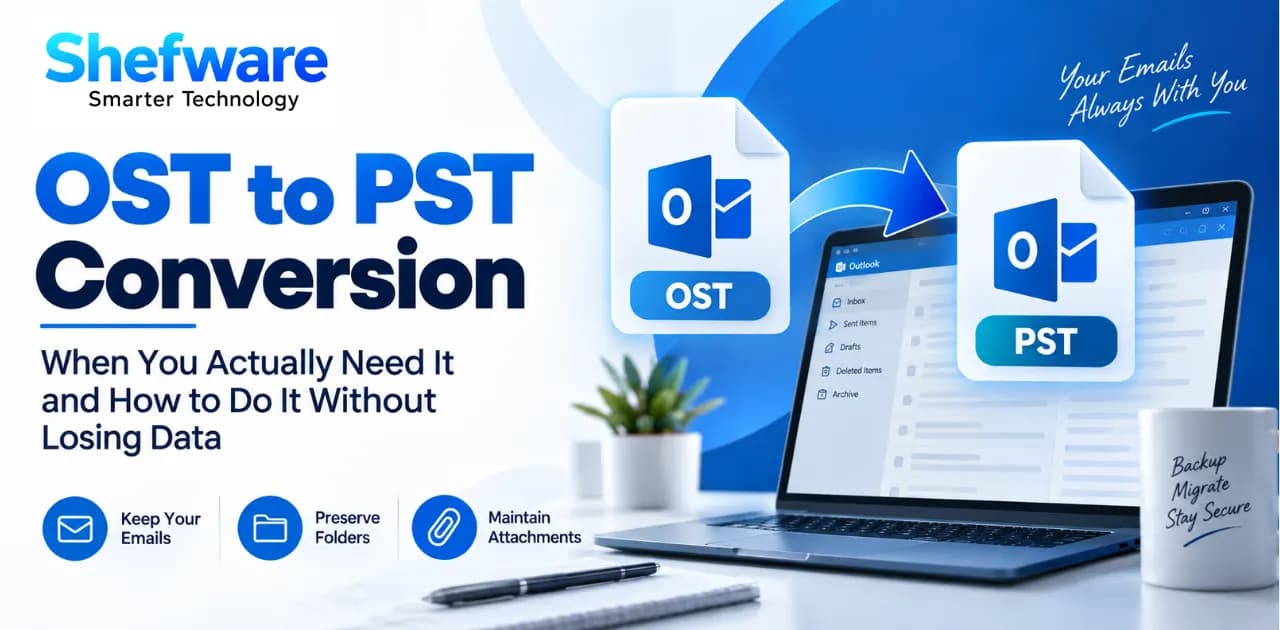
If you've ever opened Microsoft Outlook to find your mailbox missing, unreadable, or stuck behind a dead Exchange server, you've probably run into the term "OST to PST conversion." It sounds technical, but the situation behind it is usually simple: you have data exported into a file format that only works under specific conditions, and you need to get it into a format you can actually use.
This guide covers exactly when you need to convert an OST file to PST, why doing it manually can go wrong (or why you should back up your data first), and how to convert safely — without losing folders, attachments, or message metadata in the process.
What Is an OST File, and Why Can't You Just Open It Somewhere Else?
An OST (Offline Storage Table) file is a cached, synced local copy of your Exchange or Microsoft 365 mailbox, or another hosted email server, such as Gmail. Outlook creates and maintains it automatically so you can keep working — reading old mail, searching, drafting — even when you're offline or the server connection drops. For a deeper look at how this works, see what an OST file is and how it functions in Outlook.
The catch is that an OST file is synced to the mailbox it was created from. It's not a transferable backup. Move it to another computer, point it at a different Outlook profile, or permanently lose the connection to the original Exchange account, and the file becomes unreadable. Outlook needs to reconcile the OST against the live server to make sense of it; without that link, you're holding a file full of your data that nothing can open.
An Outlook PST (Personal Storage Table) file solves that problem. It's a self-contained, portable mailbox file that doesn't depend on a live server connection. Once your data is in PST format, you can open it in any Outlook installation on Windows, archive it, back it up, or migrate it wherever you need. If you're unclear on how the two formats differ, our PST vs. OST comparison breaks it down further.
The 4 Most Common Reasons You'll Need to Convert
People rarely go looking for "OST to PST conversion" out of curiosity — there's almost always a specific trigger. The most common ones:
1. The Exchange server is being decommissioned or replaced
When a company retires an old Exchange server, migrates to a new one, or moves off an on-premises setup entirely, every OST file tied to that server becomes orphaned. The mailbox data still exists locally, but there's no live account left to reconcile it against. This is exactly the scenario one 100-employee company faced after an Exchange server shutdown — read the case study for how they recovered their mail.
2. The mailbox is corrupted or inaccessible
Account lockouts, deleted mailboxes, or a laptop reassigned before someone backed up their mail all leave the OST as the last surviving copy of the data. Converting it to PST is often the only way to recover that mail — see how to recover and access OST files securely for the safest approach.
3. You're switching email clients or platforms
If you're moving away from Outlook, or consolidating mail into a different system, PST is the interchange format most tools expect. OST simply isn't accepted anywhere outside of Outlook talking to its original server.
4. You need a portable backup
Some IT teams convert active mailboxes to PST periodically just to have an offline, exportable copy that isn't tied to server uptime or licensing status.
5. Your mailbox is full, or Outlook won't send, receive, or respond
A mailbox that's hit its size limit, or an Outlook client that's freezing or unresponsive, can often be resolved by converting and offloading data to PST rather than letting the mailbox keep growing unchecked.
Why Manual Conversion Mostly Fails
Outlook has a built-in Import/Export wizard, and for a healthy, still-connected mailbox, it can technically move data into a PST. But it breaks down in exactly the situations where you need conversion most:
If the OST is orphaned (the original Exchange account is gone, disabled, or unreachable), Outlook has nothing to reconcile against, and the Import/Export option either fails outright or refuses to load the file.
If the OST is corrupted, Outlook's built-in repair tool (ScanOST) is limited and can fail on larger or more severely damaged files, sometimes making the corruption worse.
If the OST file size is large and the mailbox has reached its maximum, you'll need to split the mailbox or archive the data into multiple PST files for the best Outlook performance. Our PST Split tool is built for exactly this.
Manual export is all-or-nothing on structure. It's easy to end up with flattened folders, missing subfolder hierarchy, or attachments that silently drop during a bumpy export.
None of this means manual conversion is unsafe by definition — for a live, connected, healthy mailbox, it works fine. But the moment the OST is orphaned or damaged, you need a dedicated conversion tool built to read OST files directly, independent of any server connection.
What "Without Data Loss" Actually Means
"No data loss" isn't just about the email text arriving intact. A conversion that actually preserves your mailbox should carry over:
Folder structure — nested folders and subfolders in their original hierarchy, not flattened into one list
Attachments — every file attached to every message, unmodified
Metadata — sent/received timestamps, read/unread status, flags, and categories
Special items — calendar entries, contacts, tasks, and notes, if they were part of the original mailbox
A tool that only recovers the message body and drops everything else technically "converted" the file, but it didn't preserve the mailbox — and for compliance or legal holds, that distinction matters.
How to Convert OST to PST Without Data Loss
Locate the OST file. Its default location is under
C:\Users\[username]\AppData\Local\Microsoft\Outlook\. If Outlook is still installed, you can also check the account settings to confirm the exact file path — or see where to find your PST and OST files for a full walkthrough.Don't open the OST directly in a text or file editor — it's a proprietary binary format, and any manual tampering risks further corruption.
Use a dedicated OST to PST converter rather than the built-in wizard if the mailbox is orphaned, corrupted, or you need guaranteed structural integrity. A purpose-built tool like the Shefware OST to PST Converter reads the OST independently of any Exchange connection, so it works even when the original account no longer exists.
Run a preview before exporting. Reliable converters let you preview folders, messages, and attachments before committing to a full export — this is your chance to confirm the data is readable and intact before you convert anything.
Export OST to PST, choosing a destination and, if the tool supports it, splitting large exports into manageable file sizes to avoid future PST size-limit issues.
Validate the output. Open the new PST in Outlook and verify the folders, older messages, and a few attachments before treating the OST as detached.
The Shefware OST to PST Converter is built for exactly this scenario — it reads OST files directly, works with or without a live Exchange connection, and preserves folder structure, attachments, and metadata during export, with a preview step before you commit. For a step-by-step walkthrough using the tool itself, see how to convert an OST file to PST using the Shefware OST to PST Converter.
How to Verify the Converted PST Is Complete
Before deleting the original OST, check:
Message count — does the folder-by-folder count in the new PST roughly match what you'd expect from the original mailbox?
Random sampling — open a handful of older emails and confirm attachments open correctly and formatting is intact.
Folder hierarchy — confirm subfolders are nested the way they were originally, not merged or flattened.
Search functionality — run a search in Outlook against the new PST to confirm indexing works and content is searchable, not just present as raw data.
Only once you've confirmed all of this should you archive or delete the source OST file.
FAQ
Can I convert OST to PST without Outlook installed?
Yes — dedicated OST to PST converter tools read the file format directly and don't require Outlook or an active Exchange connection to extract the data. This is actually the more reliable route for orphaned or corrupted OST files, since Outlook's own export tools assume a working mailbox connection. See how to export OST files to PST using an OST to PST converter for the full process.
Is there a free way to convert OST to PST?
Outlook's built-in Import/Export feature is free and works for healthy, connected mailboxes. For orphaned, corrupted, or large mailboxes, free online converters carry real risk — many require uploading your mailbox data to a third-party server, which raises obvious privacy and compliance concerns, and results are inconsistent on damaged files.
Will converting to PST fix a corrupted OST file?
Conversion and repair are related but not identical. A good converter can extract readable data around minor corruption, but if the file is severely damaged, you may need a repair step first. If your OST won't convert cleanly, check whether the mailbox itself needs recovery rather than just format conversion — our guide to recovering and accessing OST files securely covers this scenario. IT teams handling this at scale can also see how one admin converted 200 orphaned OST files to PST in a single day.
What if my PST file ends up too large to manage afterward?
Large converted PSTs can hit Outlook's performance and file-size limits. If that happens, look into splitting the file into smaller, dated PSTs rather than working out of one oversized file — see our guides on splitting large PST files and merging PST files back into one depending on which direction you need to go.
Trapped mailbox data doesn't have to stay trapped. Whether your OST is orphaned, corrupted, or just needs to move somewhere portable, the Shefware OST to PST Converter is built to extract it cleanly — folder structure, attachments, and metadata intact — so you're not choosing between speed and safety. Try it free or talk to our team about a bulk or enterprise conversion.
- Get link
- X
- Other Apps


Comments
Post a Comment