SharePoint Backup: Everything You Need to Know
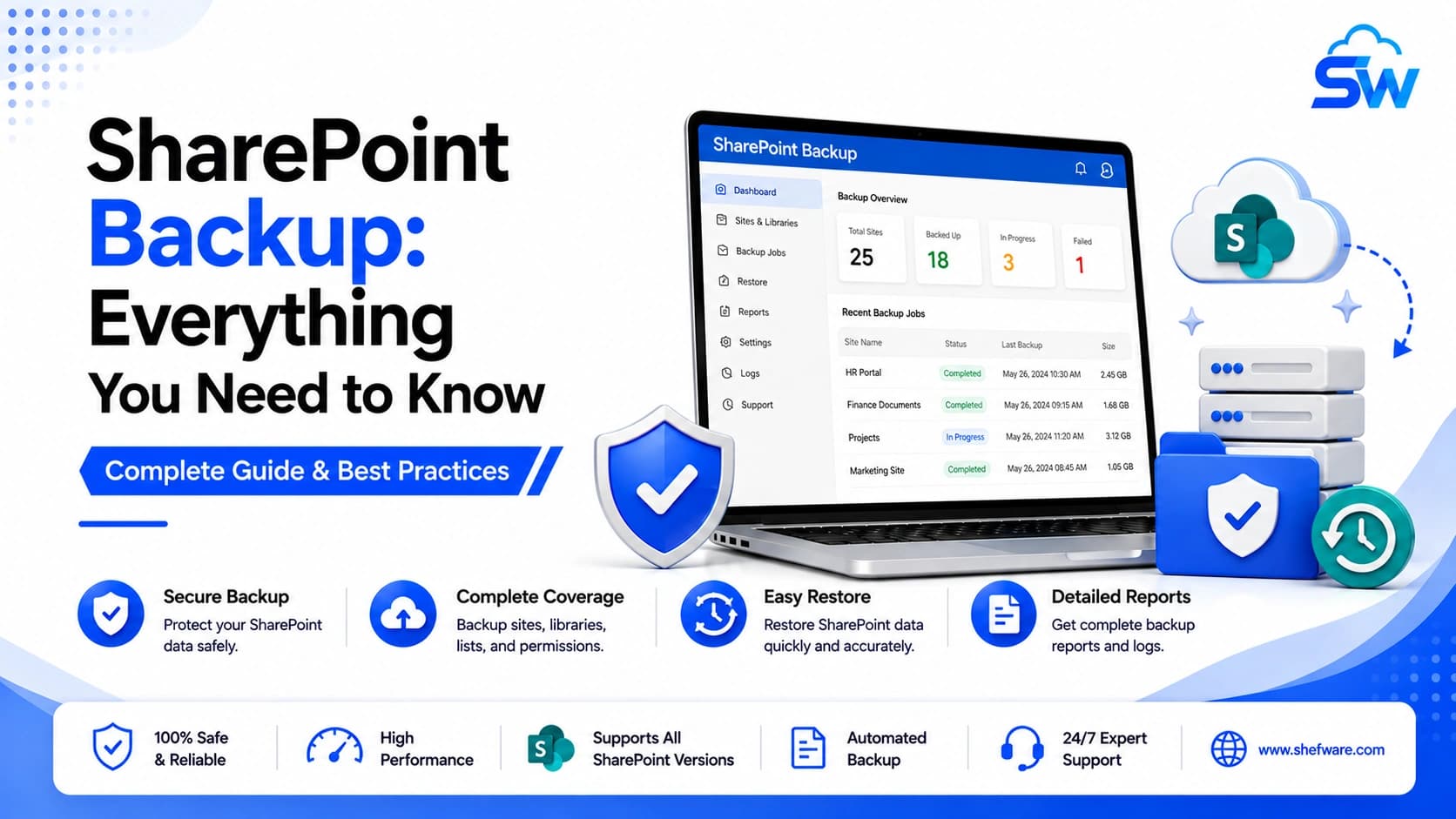
SharePoint Backup: Everything You Need to Know
SharePoint is quickly becoming one of the most widely used platforms for document management, content sharing, and team collaboration. SharePoint is used by various organizations to store save and store the critical business data. While Microsoft provides a built-in recovery feature, users look for other SharePoint backup solutions. In this blog, users will be guided on why sharepoint server backup is crucial, common causes of data loss, and how to backup SharePoint without any data loss.
What is SharePoint Backup?
Sharepoint cloud backup is the process of creating copies of SharePoint data to restore the email folders if files are deleted, corrupted, or lost. Types of SharePoint data that need to be backed up are document files, document libraries, site collections, metadata, permissions and security settings, and other important data. It can be done various office 365 sharepoint backup options either through either manual methods or professional methods.
Why is SharePoint Backup important?
The common reasons why Office 365 SharePoint backup is important are due to many reasons such as:
-
Prevent accidental data deletion.
-
Protect data from malware and virus attacks.
-
Recover older mailbox data.
-
Restore previous versions with updates.
-
Ensure business continuity with minimal downtime.
Common Challenges for SharePoint Backup
There are many reasons why O365 SharePoint backup is needed for backup of SharePoint Online.
-
Large Data Volume
Backing up a large volume of data becomes time-consuming and difficult to manage.
-
Accidental data deletion
Users can accidentally delete important documents and folders, which can sometimes lead to permanent data deletion and remain unrecoverable.
-
Cybersecurity Threat
The biggest threat that leads to SharePoint backup is malware and virus attacks, leading to business disruption.
-
Time-Consuming and Inefficient
The manual methods are time-consuming and inefficient, especially during large mailbox data management, impacting business productivity.
How to back up SharePoint using the manual method?
Learn how to backup SharePoint using the simple steps given below:
-
Download Files from SharePoint Online.
-
Go to the document library and select the files and folders that need to be backed up.
-
Click Download and store the files to your destination location.
Professional method: Shefware Office 365 Backup
Shefware Office 365 Backup tool is the most common way to safeguard SharePoint data. Shefware Office 365 backup tool protects important business data. The tool can back up Exchange Online mailboxes, OneDrive accounts, Teams data, and SharePoint Online sites. The tool seamlessly backs up all the data without any data loss, while preserving the original mailbox data structure and hierarchy. The tool is ideal to backup sharepoint data to store, share, and collaborate with organizations. The tool supports both complete and selective data backup to restore and recover the data, ensuring complete SharePoint backup.
Features of Shefware Office 365 backup for SharePoint
-
Perform complete and selective SharePoint backup with ease.
-
Back up SharePoint Online, Exchange Online, OneDrive, and Microsoft Teams from a single application.
-
Schedule automatic backups to eliminate manual effort.
-
Store backup data securely on your local storage.
-
Simplify SharePoint backup and restore operations whenever data recovery is required.
-
Protect business data from accidental deletion, ransomware attacks, and unexpected data loss.
How Office 365 Backup tool work?
-
Download and install the Shefware Office 365 backup tool on the system.
-
Log in to the account and create a new job, adding details such as source, admin information, and permissions.
-
Choose the SharePoint data that needs to be backed up.
-
Apply the advanced filters, dates, or folders for an accurate migration.
-
Select the formats that need to be backed up
-
Choose either immediate or schedule to migrate the data at your own preferred time.
-
Start the migration process and locate the SharePoint backups data.
Conclusion
If you are looking for a reliable O365 SharePoint backup method, and manual methods are not able to help you. Choose the best SharePoint Online tool to create SharePoint backups to restore and recover the data. Shefware Office 365 backup tool provides the best SharePoint backup solutions, as it simplifies the process and easily backs up data without any data loss. Switch to Shefware to create a backup SharePoint files in case of deletion, corruption, or data loss. The tool helps in managing SharePoint backups while preserving the original mailbox data.
Frequently Asked Questions
Q1. What is SharePoint backup?
Ans. SharePoint backup is the process of creating copies of SharePoint data and storing it in the local folder to ensure business continuity in case of accidental deletion, data loss, or corruption.
Q2. What data is included in SharePoint backup?
Ans. The data includes documents, document libraries, site collections, lists, metadata, permissions, version history, etc backup for sharepoint.
Q3. Can I schedule automatic data backups?
Ans. Yes, the Shefware Office 365 tool allows users to either start the backup immediately or schedule the data backup as per the user’s preference.
https://www.osttopst.us/


Comments
Post a Comment