Why Every Business Needs a Microsoft Teams Backup Strategy
Why Every Business Needs a Microsoft Teams Backup Strategy (And How Shefware Makes It Easy)
Written By
NickApproved By
Mr. TarunPublished on
10 Sept 2026Min Reading
8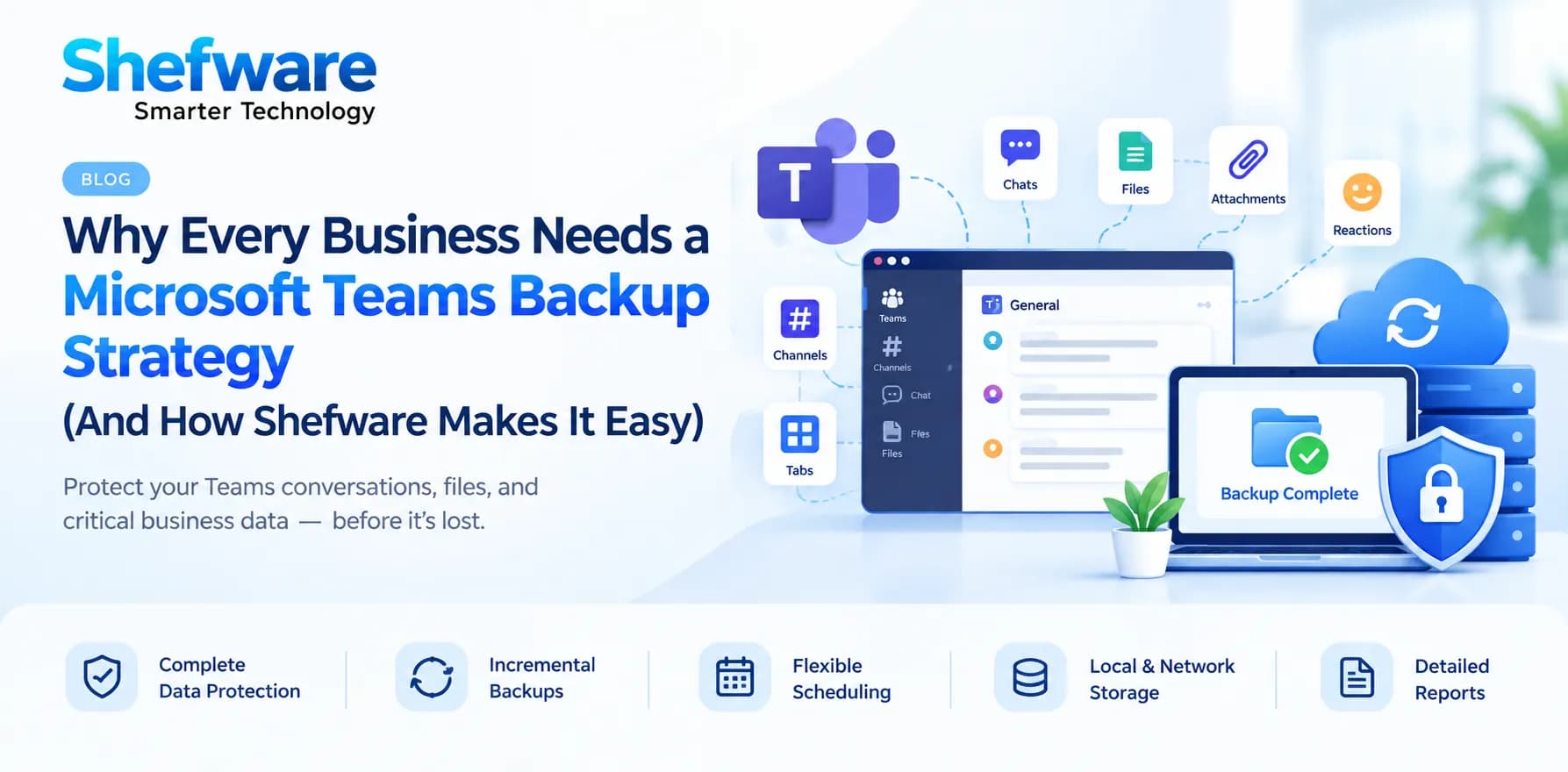
Microsoft Teams has quietly become the nerve center of modern business communication. Every day, teams exchange thousands of messages, share files, post updates in channels, and build a running history of decisions, projects, and conversations. But here's the uncomfortable truth: most organizations have no backup plan for any of it.
If a channel gets deleted, an employee account gets removed, or ransomware hits your network, that entire conversation history — along with the files and context tied to it — can vanish in seconds. Microsoft's native retention policies help to a point, but they aren't a substitute for a real, independent backup — the same principle that applies to backing up your broader Microsoft 365 environment.
That's where Shefware Microsoft Teams Backup comes in.
What Is Shefware Teams Backup?
Shefware Teams Backup is a dedicated tool built to back up Microsoft Teams data — chats, channels, files, posts, attachments, and reactions — to a local drive or network storage location. It's designed for IT administrators, growing businesses, and enterprises that can't afford to treat Teams data as disposable.
Unlike relying purely on Microsoft's built-in retention settings, Shefware gives you a standalone, exportable copy of your Teams environment that you control, store, and access on your own terms.
What Data Can It Back Up?
The tool covers nearly everything that makes up your Teams environment:
Teams – complete or selected teams, preserving the original structure
Channels – standard, private, and shared channels, including their messages and files
Channel Messages – posts, replies, and ongoing conversations
Personal Chats – one-on-one conversations between individual users
Group Chats – full group chat history exported to HTML
Files and Folders – documents shared across Teams, channels, and conversations
Attachments – files sent within messages and channel posts
Reactions – emoji reactions tied to messages
Tabs – channel tabs, preserved for continuity ahead of any future tenant migration
Rather than a partial snapshot, this gives you a genuinely complete picture of what happened inside your Teams tenant.
When Do You Actually Need This?
Backup tools tend to get ignored until the moment they're desperately needed. A few common situations where Shefware Teams Backup earns its keep:
Protecting business-critical conversations. Important decisions, approvals, and project discussions often live only in Teams chat threads. Backing these up means you're not depending on a single platform to preserve institutional knowledge.
Employee offboarding. When someone leaves the company, their Teams conversations and files often get removed along with their account. Backing up that data first ensures nothing valuable disappears with them.
Guarding against data loss. Accidental deletions, sync errors, or malicious activity can wipe out Teams content in an instant. A separate backup means you're not left starting from zero.
Long-term archiving. Some organizations need to retain communication records for compliance, audits, or historical reference — and having that data stored locally, in an accessible format, makes retrieval far simpler.
Pre-migration safety net. Before moving Teams data between tenants or restructuring Teams, having a backup in place protects against anything getting lost in transition. If you're planning a move, Shefware's Teams Migration service can help handle the transition itself.
How It Works
Getting started doesn't require deep technical expertise. (You can also walk through the full step-by-step guide on the Shefware site.)
Launch the tool and create a new backup job.
Connect your Microsoft 365 account to give the software access to your Teams environment.
Choose the Teams and users you want to back up — or select everything.
Set a schedule, if you want the backup to run automatically at a specific date and time.
Monitor the process as it runs, with live status updates.
Review the history and reports afterward to confirm what was backed up, skipped, or failed.
For teams that don't want to manually trigger backups every time, the scheduling feature supports one-time, daily, weekly, or monthly runs — plus an expiry date so jobs stop automatically once your retention window ends.
Standout Features
A few things set Shefware Teams Backup apart from a basic export tool:
Delta (incremental) backup – only new data gets backed up on subsequent runs, so you're not duplicating what's already saved.
Date range filtering – back up only the data created or shared within a specific time period.
HTML export – Teams chats and channel posts export to HTML for easy offline viewing, without needing the Teams client open.
Preserved hierarchy – the original structure of teams, channels, and folders stays intact, so nothing gets jumbled during backup.
Flexible storage – save backups to a local drive or a network location, based on your infrastructure.
Detailed reporting – track exactly what was completed, skipped, or failed after each run.
Who Is This For?
Shefware Teams Backup is built with IT administrators and business owners in mind — anyone responsible for keeping company data safe without spending hours doing it manually. It runs on virtually any Windows environment, from Windows 7 through Windows 11 and various Windows Server editions, and works with Microsoft 365 Business, Enterprise, and Exchange Online plans — the same plans supported across Shefware's Office 365 migration tools.
Final Thoughts
Backing up Microsoft Teams isn't a "nice to have" anymore — it's a basic layer of business continuity. Conversations, decisions, and shared files that live in Teams are just as important as the emails and documents most companies already back up religiously. Yet Teams often gets left out of the conversation entirely.
Shefware Teams Backup closes that gap with a tool that's straightforward to set up, flexible enough for ongoing scheduled use, and thorough enough to capture the full picture — chats, channels, files, and everything in between.
Ready to protect your Teams data? Try the free demo, check the FAQs for common questions, or see what other customers are saying about the tool.


Comments
Post a Comment