Why Won't My Video Play? A Practical Guide to Fixing Corrupt Files, Codec Errors, and Damaged Headers
Why Won't My Video Play? A Practical Guide to Fixing Corrupt Files, Codec Errors, and Damaged Headers
Written By
CharlotteApproved By
Mr. Tarun KumarPublished on
02 Sept 2026Min Reading
5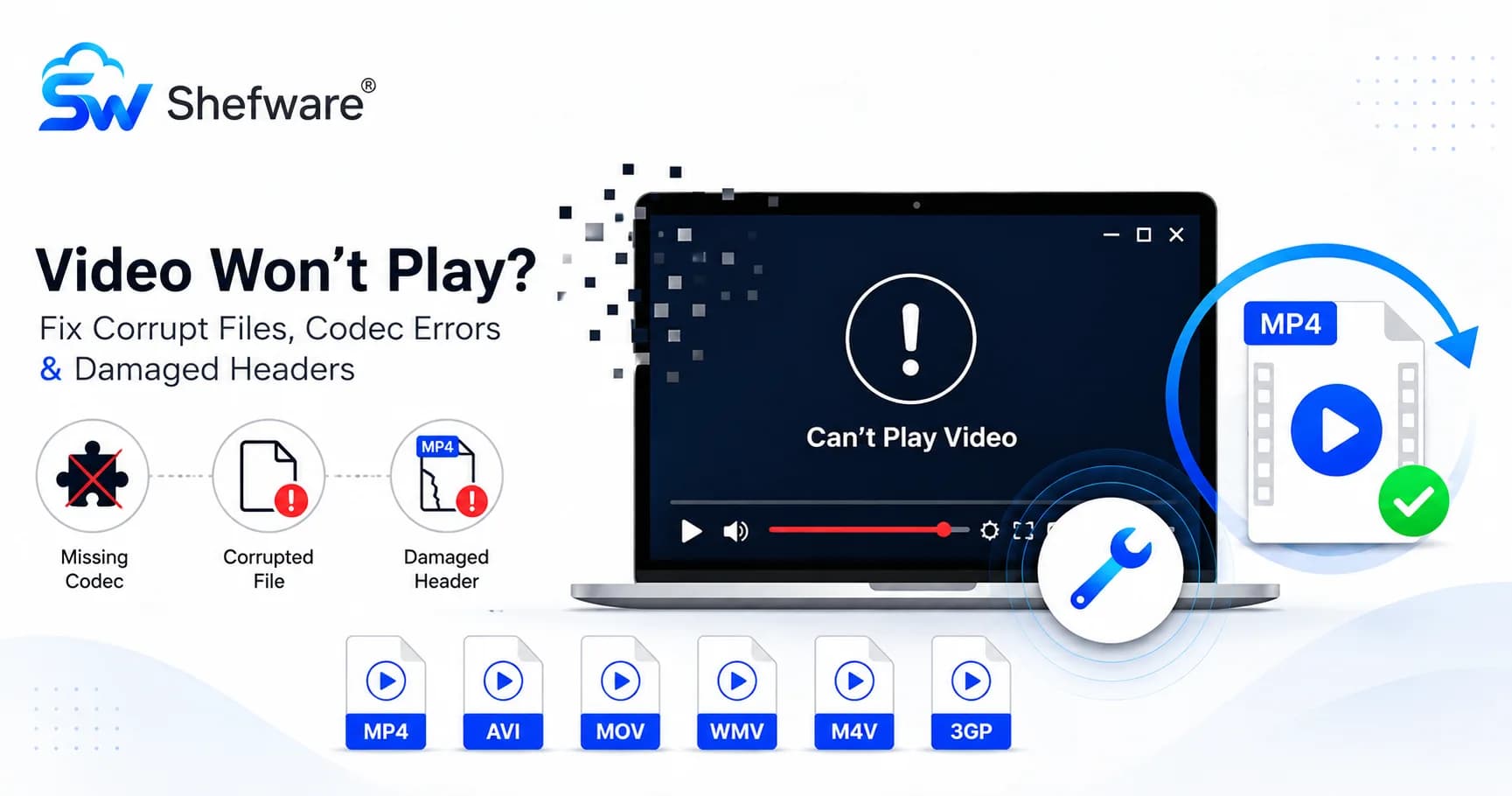
If a video file suddenly refuses to play — freezing, showing a black screen, throwing an "unsupported format" error, or crashing your media player outright — the cause is almost always one of three things: a missing or incompatible codec, a corrupted file, or damaged header/metadata. Here's how to tell them apart and what actually fixes each one.
1. Codec Issues (the most common culprit)
A video file is really just a container (like MP4 or MOV) wrapping compressed audio and video streams. Your player needs the right codec — the software that decodes that compression — to display the file. When a codec is missing or outdated, you'll often see:
The video plays but with no sound (or vice versa)
A generic "this file format is not supported" message
Choppy, pixelated, or garbled playback
How to fix it or How to Fix MP4 Video:
Update your media player. VLC Media Player and MPC-HC bundle a huge range of codecs internally, so switching to one of these solves the majority of codec problems instantly.
Install a codec pack only from a well-known, actively maintained source (e.g., the K-Lite Codec Pack) — avoid random "video fix" tools bundled with codec installers, as these are a common vector for adware.
Check the file extension against the actual format. Occasionally a file is renamed (e.g., a .avi renamed to .mp4) which confuses players expecting a specific container structure. Tools like MediaInfo (free, open-source) will show you the actual codec and container used, regardless of the file extension.
2. Corrupted Files
Corruption usually happens from an interrupted transfer, a crash during recording, a bad download, or a failing storage device. Signs include:
The file won't open at all in any player
Playback stops abruptly partway through
Visual glitching (blocky artifacts, color smearing) that gets worse over time
How to fix it:
Try a different player first. VLC is unusually tolerant of partial corruption and can sometimes play files that other software rejects outright.
Re-download or re-transfer the file if you still have access to the original source — this resolves most transfer-related corruption without any repair tool needed.
Use dedicated repair software for genuinely damaged files. Legitimate, well-reviewed options include:
VLC's built-in repair (Tools settings can sometimes rebuild playback for AVI files with broken indexes)
Open-source tools like FFmpeg, which can often remux or re-encode a damaged file into a playable one via command line
Established commercial repair tools from vendors with a verifiable track record and transparent company information — always check independent reviews (not just testimonials on the vendor's own site) before installing anything that promises to "fix" video files, since this category attracts a disproportionate number of scareware and adware products.
3. Damaged Headers (MP4/MOV specifically)
MP4 and MOV files store crucial playback metadata — resolution, duration, index of frames — in a "moov atom" at the start or end of the file. If this header is incomplete (common with camera recordings interrupted by a dead battery, a full memory card, or a crash mid-write), the file may:
Show 0:00 duration or refuse to show a thumbnail
Fail to open even though the file size looks correct
Play audio with no video, or vice versa
How to fix it:
FFmpeg remux. Running a command like ffmpeg -i broken.mp4 -c copy fixed.mp4 forces FFmpeg to rebuild the container without re-encoding the actual video data — this fixes a large share of header-related failures for free.
Untrunc, an open-source tool built specifically to repair MP4 files with missing moov atoms by referencing a healthy reference file of the same format (useful for GoPro and drone footage).
Camera-specific recovery tools from the camera manufacturer, if the file came from a dedicated device — these are built to understand that device's exact recording format.
Using Video Repair Software
The best way to fix the “missing codec 0xc004f011” error or codec 0xc004f011 error is to use a Shefware Video Repair Tool. This Best Video Repair software will scan your computer for missing or corrupt codecs and then install the required codecs automatically. It can repair corrupted or damaged video files of different formats, including MP4, AVI, ASF, WMV, MOV, M4V, 3GP, more.


Comments
Post a Comment