XPS Viewer: How to Operate and Process on Windows
XPS Viewer: How to Operate and Process on Windows
Learn how to use and manipulate XPS (XML Paper Specification) on Windows.
You double click a file that someone sent you by e-mail and Windows asks you which program you would like to use. The extension is .xps and there is no known application that can open it on the PC. Despite the fact that most people do not consider XPS files, they are still present in business workflows, government portals and invoices.
This guide will explain what an XPS file is, what an XPS Viewer is, and how to open it on Windows 10 and 11 — as well as the difference between XPS and OXPS, XPS and PDF, corrupted files, and when using a dedicated XPS Viewer software is worth it.
What Is an XPS File?
A fixed-layout document format, created by Microsoft to maintain file formatting, fonts, text and images between devices, is called XPS (XML Paper Specification). The .xps file format is primarily used for viewing and printing, not editing.
Fixed layout: Preserves the text, images, fonts and layout.
Microsoft format: The format that was developed for printing and sharing documents on the windows platform.
View and print: XPS files are primarily intended to view and print documents.
Extension: XPS documents have the extension .xps and are openable with a compatible XPS Viewer.
XPS files might be received from older Windows applications, document-printing processes, reports, statements, or portals. They can be opened, read and printed with XPS Viewer software, without altering their appearance.
What Is XPS Viewer?
XPS Viewer is a generic name for any software which opens and displays .xps (and many .oxps) files. The ideal XPS file viewer will:
Make a copy of the page exactly as it was designed, with fonts, graphics and layout.
Allow scrolling or jumping to other pages
Allow scrolling or jumping to other pages
Offer zoom controls
Support printing
Many users have long been used to a Windows built-in XPS Viewer, so it's the first tool that many people will turn to. However, “XPS Viewer” does not refer to a specific product—it's a category that encompasses Microsoft's utility, dedicated third-party XPS viewer applications, and general document readers that happen to be able to read documents in XPS format.
The steps to open and view XPS files on Windows.
Find the .xps file – check that it is not in fact .oxps.
See if XPS Viewer is installed, type “XPS Viewer” into the Windows search bar.
Open the file with XPS Viewer — right-click, "Open with," select XPS Viewer, or just double-click if it's already the default.
If Windows does not recognize the file then it is unlikely that the XPS Viewer is installed, as it has been omitted as standard from recent versions of Windows.
Consider alternatives if you'd rather not install the Windows feature: some general document readers open XPS files or dedicated XPS viewer software that has been created specifically for the format.
How to Install or Enable XPS Viewer in Windows 10 and Windows 11
XPS Viewer has not been installed by default for several years — Microsoft moved it to an optional, install-on-demand feature starting with the Windows 10 update released in late 2017, and Windows 11 continues that approach.
To install it:
Open Settings.
Go to Apps (Windows 11) or Apps & Features (Windows 10).
Click Optional features > View features.
Search "XPS," check XPS Viewer, click Next, then Install.
Wait a minute or two — no restart needed.
IT admins can also use PowerShell:
Add-WindowsCapability -Online -Name "XPS.Viewer~~~~0.0.1.0"
or DISM:
DISM /Online /Add-Capability /CapabilityName:XPS.Viewer~~~~0.0.1.0
Best Ways to View XPS Files
Shefware XPS Viewer
If you're looking for a tool that's specifically designed for reading XPS documents and not a Windows feature in Settings then XPS Viewer from Shefware is an option to consider.
It is intended to open, read and preview XPS documents without changing the content and structure of the source document, including the preservation of text, images, graphics and fonts. It features page by page navigation in case of multi page documents, zoom in/out to read the text and allows to load and preview multiple XPS files in one run, which is helpful when working through a batch of XPS files.
It's not an all-purpose package so it's practical for those who simply want to read XPS files, without having to first test whether the Windows optional feature is installed. If you're interested in a more focused XPS document viewer, you can take a look at Shefware's XPS Viewer for more information. If you're looking to see what else Shefware creates, you can visit their list of software solutions.
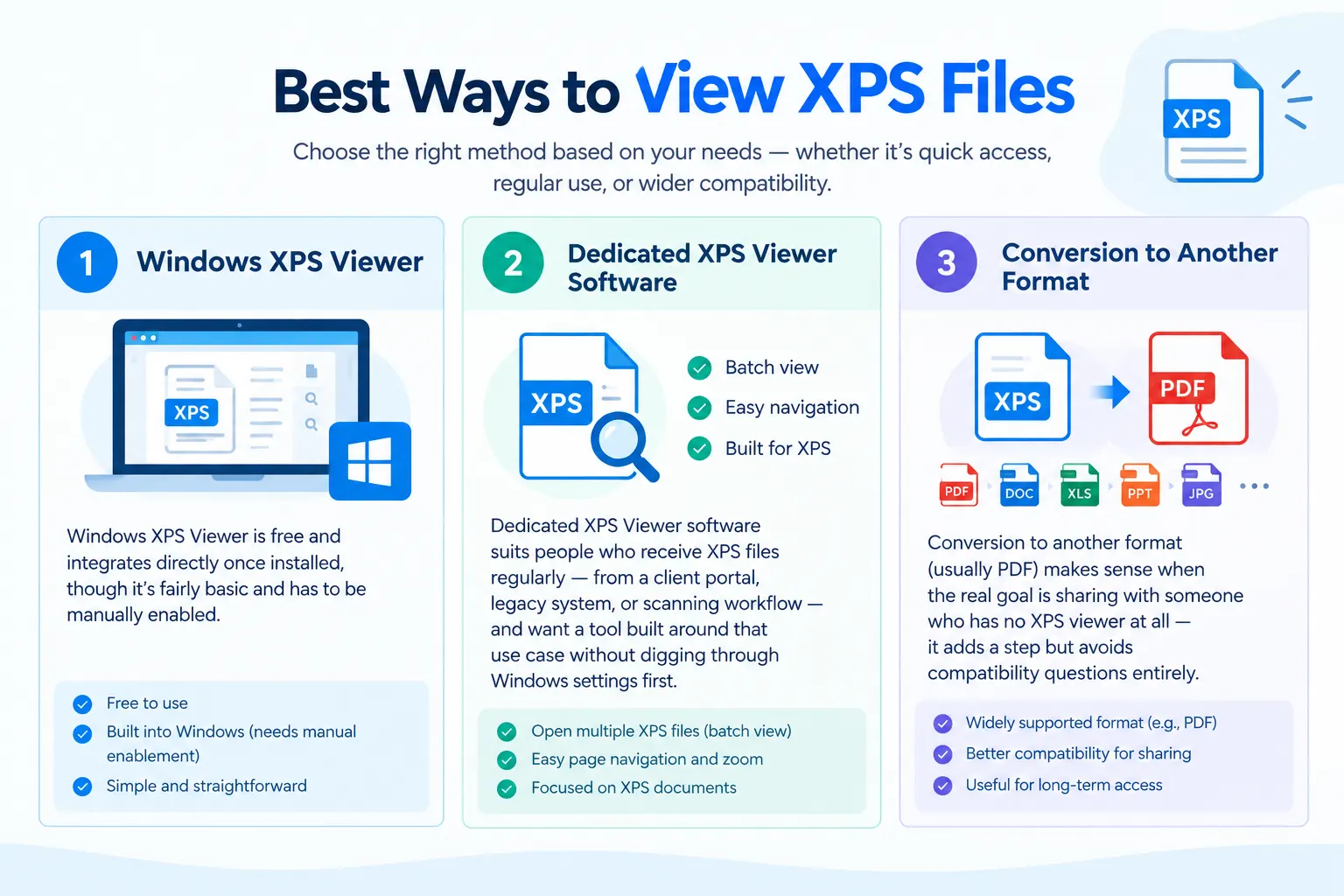
There are other options to open XPS files but they are not XPS Viewer. In-built Windows viewing will work for occasional use. Regular usage of XPS viewers that is done with dedicated XPS viewer software, and a tool that opens directly to this view.
Because it's purpose-built for viewing rather than trying to be an all-purpose suite, it's a practical option for anyone who wants a straightforward way to read XPS files without first checking whether the Windows optional feature is installed. Users looking for a dedicated XPS document viewer can explore Shefware's XPS Viewer for more information, and Shefware's software solutions page has the broader lineup if you want to see what else they build.
XPS Viewer vs Other Ways to Open XPS Files
Built-in Windows viewing works well for occasional use.
Dedicated XPS viewer software suits regular use and a tool that opens straight to that purpose.
Conversion to PDF is the practical choice when the file needs to reach someone without any XPS viewer.
Other compatible document apps can be convenient if you already use one for other formats.
None is inherently superior — it comes down to frequency of use and where the file needs to travel.
Shefware: XPS Viewer vs Other XPS Viewing Tools
Feature | Shefware XPS Viewer | Microsoft XPS Viewer | SumatraPDF | STDU Viewer |
|---|---|---|---|---|
XPS viewing | Yes | Yes | Yes | Yes |
XPS document support | Text, images, graphics, fonts | .xps and .oxps | XPS plus OXPS | XPS |
Dedicated XPS-focused workflow | Yes | No — general Windows utility | No — multi-format reader | No — multi-format reader |
Ease of use | Simple navigation and zoom | Simple, basic interface | Minimalist, lightweight | Tabbed interface |
Windows compatibility | Yes | Yes (optional feature) | Yes | Yes |
Additional formats | Focused on XPS | None (Windows utility) | PDF, EPUB, MOBI, FB2, CHM, DjVu | TIFF, PDF, DjVu, JBIG2, FB2 |
Installation | Standalone install | Enabled via Optional Features | Installer or portable | Installer or portable |
Best suited for | A focused XPS document viewer | Users who prefer a built-in option | One lightweight app for several formats | Scientific/technical documents in multiple formats |
XPS vs PDF — Which Format Is Better for Archiving?
Both are fixed-layout formats, but with very different adoption paths. XPS is Microsoft-developed and tightly tied to Windows printing. PDF is an open ISO standard with decades of near-universal support.
Both preserve layout reliably once saved. On compatibility, PDF has the clear edge — nearly every OS, phone, and browser opens it without extra software, while XPS support is more limited outside Windows. That compatibility gap also affects long-term accessibility: a PDF is more likely to stay easily openable on future systems. For sharing, PDF is the safer default when you don't know the recipient's setup; XPS makes more sense within a Windows-only workflow. Both support high-fidelity printing.
There's no universal winner — archiving purely for internal Windows use, XPS works fine; anything leaving that environment is usually safer as PDF.
What's the Difference Between .XPS and .OXPS Files?
.xps is Microsoft's original format, introduced with Windows Vista. .oxps is "OpenXPS" — a version standardized through ECMA International (ECMA-388). Microsoft began using the .oxps extension for files from the OpenXPS-compliant print driver in later Windows versions, to distinguish them from the original format.
Aspect | .XPS | .OXPS |
|---|---|---|
Origin | Microsoft's original format | ECMA-388 open standard |
Introduced | Windows Vista era | Later Windows versions |
Compatibility | Broadly supported | Supported by most modern viewers, including Microsoft's |
Check which extension you actually have and confirm your viewer supports both — most current XPS viewers, including Windows' built-in tool, handle each without extra configuration.
Convert XPS to PDF vs View XPS Directly
Factor | View XPS Directly | Convert XPS to PDF |
|---|---|---|
Original format | Preserved | Converted |
Extra step | No | Yes |
Sharing compatibility | Limited to recipients with an XPS viewer | Broad — opens almost anywhere |
Editing | Neither enables true content editing | Neither enables true content editing |
Best use case | Quick, one-off reading | Sending to someone without an XPS viewer, or long-term archiving |
Common XPS Viewer Questions
Can I print a document from XPS Viewer? Yes — most XPS viewers, including the Windows tool, support standard printing and printing to "Microsoft Print to PDF" for a quick PDF copy.
How do I convert an XPS file to PDF on Windows? Open it in a viewer and print using "Microsoft Print to PDF" as the destination. Some dedicated tools offer a more direct export. Viewing and converting are separate functions, not the same feature.
Is XPS Viewer included by default in Windows 11? No. It's an optional feature added through Settings > Apps > Optional Features, or via PowerShell/DISM on managed devices.
How can I repair or recover a corrupted .xps file? Try re-downloading the original, opening it in more than one XPS-compatible viewer, and checking whether the transfer completed (incomplete downloads are a common cause). There's no guaranteed fix for badly damaged files.
Are there XPS viewers for macOS or Linux? Native support isn't standard on either platform. Users typically rely on third-party apps that support the format or convert to PDF first; availability varies, so check current compatibility before assuming a tool will work.
Conclusion
XPS files are fixed-layout documents built to keep formatting, fonts, and structure consistent across devices — similar in spirit to PDF, with a smaller footprint outside Windows. Whether you open one occasionally or handle them regularly, your options are real: enable the built-in Windows XPS Viewer through Optional Features, use dedicated XPS viewer software built for the format, or convert to PDF when the file needs to travel beyond Windows. Compatibility differs across Windows 10, Windows 11, macOS, and Linux, so it's worth checking what's actually installed before assuming a file won't open.
If XPS documents show up often enough that hunting through Windows settings gets old, a dedicated tool like XPS Viewer from Shefware offers a more direct way to open, read, and preview them.


Comments
Post a Comment