Cloud Migration Import PST to Office 365: Manual and Professional Methods
- Get link
- X
- Other Apps
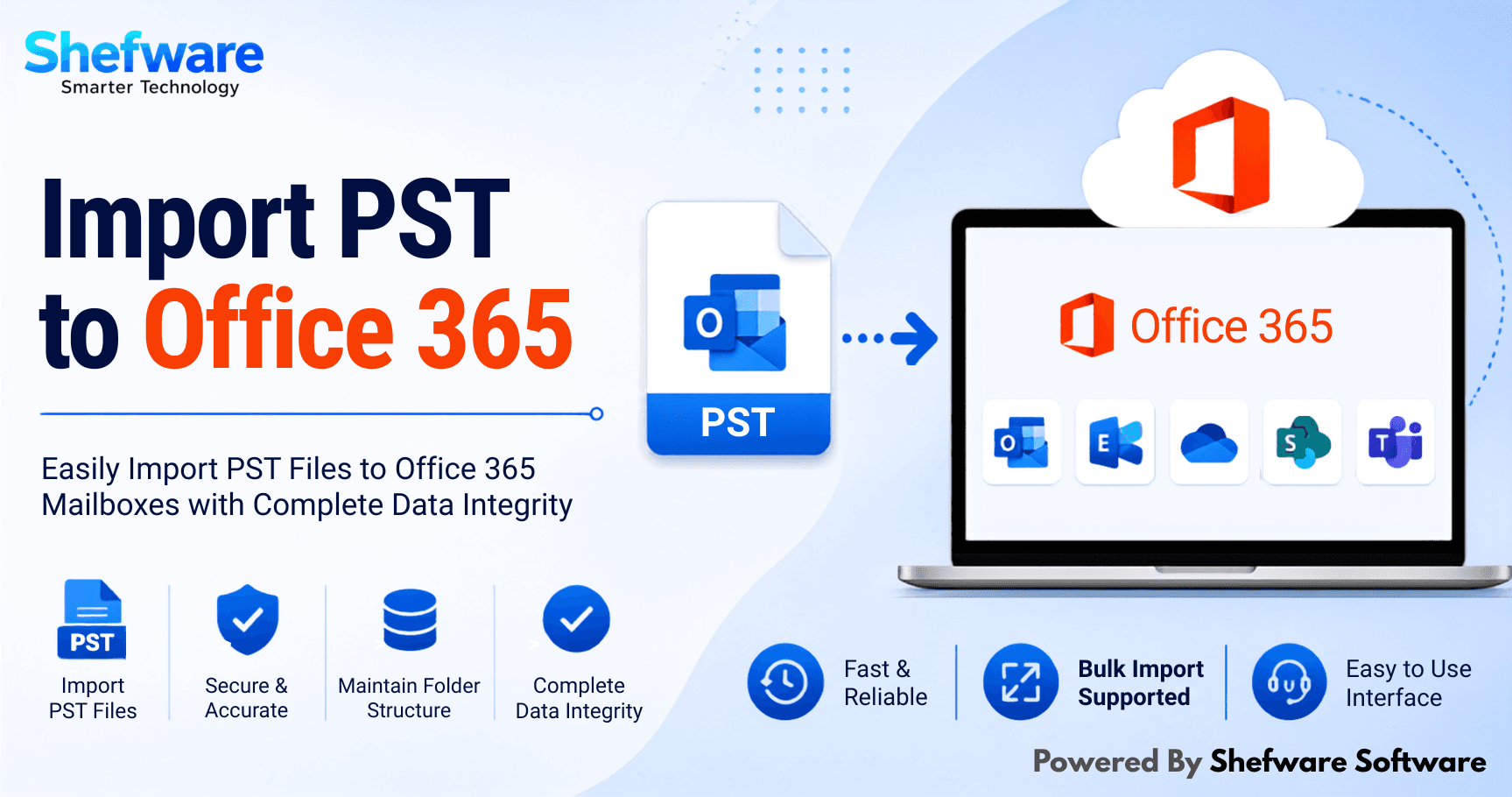
Many people and businesses are migrating from desktop Outlook to Office 365 in the cloud for improved security. But the process of migrating data is not as simple as logging into an account if all your necessary emails, contacts, calendars, tasks, and notes are stored in the PST file. You are required to import your PST files to Office 365.
In this blog, we will guide you through how we can import PST to Office 365 with the help of manual methods as well as professional methods.
What do you mean by Import PST to Office 365?
The office 365 import pst file is the process of moving your Outlook PST file that includes contacts, calendars, and emails into Office 365 cloud mailboxes. The entire process provides centralized data, enhanced security, and access to the device from anywhere. It also removes the risk of corrupting the Outlook data file.
Now, below, let’s get to know deeply about the PST and Office 365 in detail explanation:
PST File: The PST file stands for Personal Storage Table, a file format utilized by Microsoft Outlook to gather a local copy of emails, tasks, calendars, contacts, and events. They are mainly utilized for archive, backup, and export data to maintain mailbox size and are also known as the Personal Folders.
Microsoft Office 365: Office 365 offers a wide range of productivity tools that include Word, Excel, Teams, PowerPoint, OneDrive, Outlook, and many more. You can install the Microsoft Office tool on your system, and are ideal for mobile phones and tablets as well.
Why is there a need to import PST to Office 365?
There are various reasons why there is a need for a PST file import tool. Let’s see some of the reasons below:
To back up your outdated Outlook emails.
For safe and secure cloud access to data.
To meet the needs of compliance and retention policies.
Useful to avoid PST file corruption or local storage problems.
Making emails accessible on all devices.
Best Methods to Import PST to Office 365
There are various methods to migrate PST to Exchange, and they are divided into two types of methods: Manual and professional. Now, let’s get to know about them in detail:
Method to Import PST to Office 365 Manually
Microsoft offers a free approach for importing PST files into Office 365 mailboxes. You just need to follow a few steps to know about the manual method:
First, download the Azure AzCopy from the Microsoft Official website.
Upload the PST file into Microsoft Azure Storage with the help of AzCopy.
Now, generate a PST import mapping file to know where every PST can go.
Utilize the Office 365 security and compliance centre to import the data.
Limitations of the Manual Method
Talking about the manual methods, these methods have some disadvantages that you need to know:
The entire process is difficult, which can lead to a long time.
Manual ways also need a wide technical knowledge as they follow the detailed steps.
There is always a risk of data being lost.
Manual methods are not easily utilized by individual persons.
Method to Import PST to Office 365 Professionally
If you do not want to face the above-mentioned disadvantages, you can use a professional method with the help of our Shefware Import PST to Office 365 tool to work without any limitation. Our tool is an upgraded and user-friendly solution developed to import Outlook PST files into Office 365 accounts without data loss. Our tool interface is user-friendly and has a smooth running.
Steps to use our Shefware Import PST to Office 365
Here are a few steps to follow to utilize our Import PST to Office 365 tool. Given below are the details:
Download or install our tool
First, you need to download or install our best PST import tool for Office 365 to migrate all the data. Our installation process is simple and quick.
Include the PST file
Now, upload pst to office 365, automatically or manually, in a very smooth way. Press the " Add file” option to browse PST files from the system. You can also choose the single file or the huge file.
Preview the Data
Our tool offers a developed preview feature that permits viewing all mailbox data before the migration process begins. Data includes attachments, emails, calendars, contacts, folder sequence, and others.
Log in to Office 365
Now, fill in your Office 365 details to build a safe connection. The tool utilizes a new authentication process to make sure login information stays secure.
Map Mailboxes
If you are moving several PST files, you can map every PST file to a particular Office 365. This feature is particularly for administrators managing numerous user accounts, offering precise data.
Apply Upgraded Filters
Use the upgraded filters, and can move data as per the date range, particular folders, or excluded items. This limits the migration and makes sure only similar data is movable.
Begin the Import Process
Now, click on the Migrate to start the import process. The tool safely imports PST files into Office 365 without the loss of data. You can check the progress and see detailed reports.
Conclusion
In the above blog, we have discussed the two methods in detail, which are manual and professional for office 365 mailbox import. One way is the manual method, which is free but has some limitations. On the other hand, the professional method involves using reliable software for import PST file to Office 365. So, download our tool by visiting our official website.
Frequently Asked Questions (FAQs):
Q. Can we migrate multiple PST files at one time?
Ans. Yes, absolutely, with the help of our Shefware Import PST to Office 365 tool that supports bulk import pst to exchange online migration, in which a huge number of PST files get imported easily to Office 365.
Q. Will my data remain secure while migrating the data?
Ans. Yes, our tool provides the best security while importing the PST file to Office 365. We support end-to-end encryption, no retention policy, and much more.
Q. Can we use advanced filters for multiple folders?
Ans. Our tool is providing various advanced filters, such as date (From and To), a checklist that you want to select, and time for scheduling.
- Get link
- X
- Other Apps


Comments
Post a Comment