Complete Guide to Google Workspace to Microsoft 365 Migration
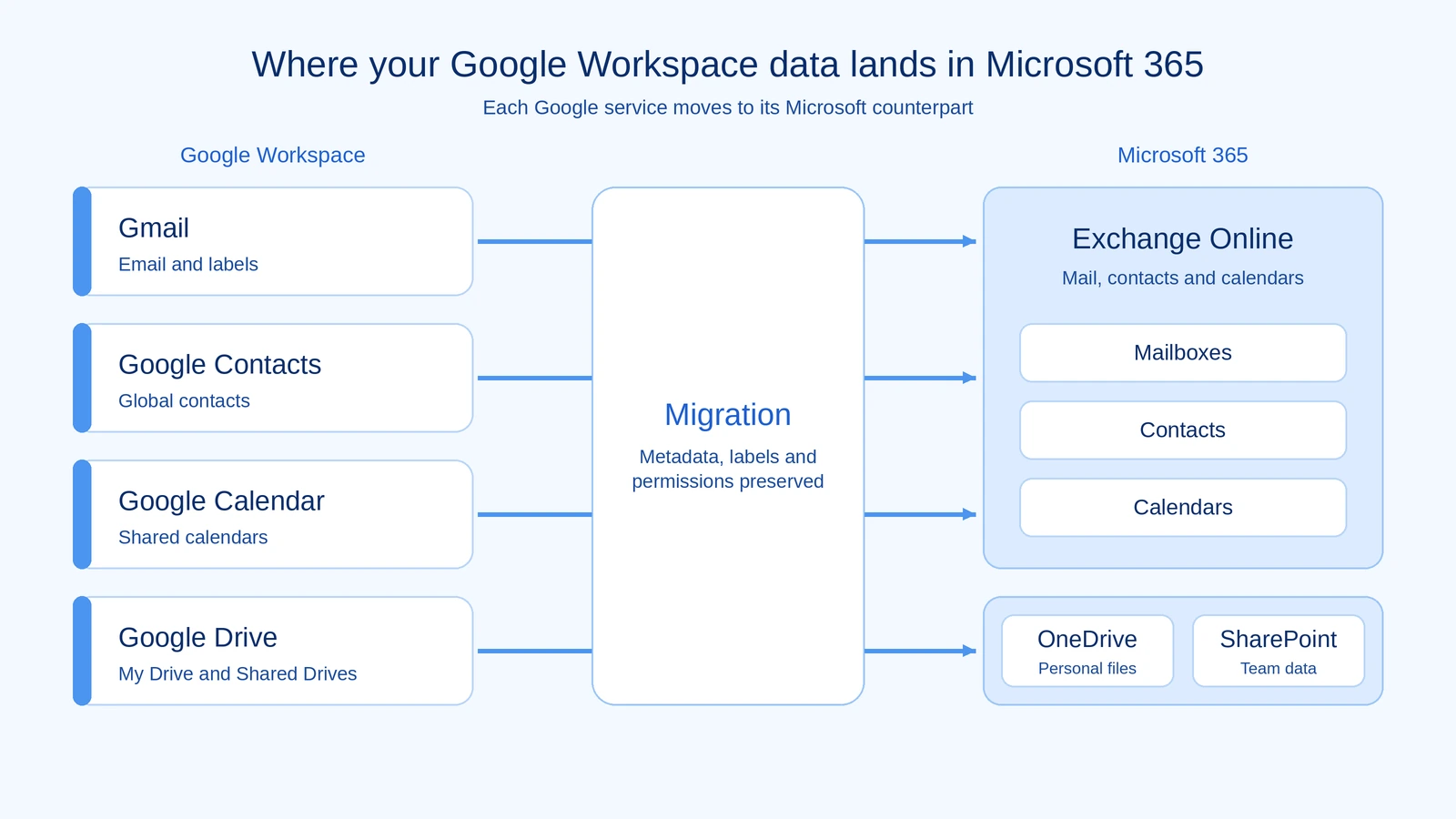
Google Workspace to Microsoft 365 Migration is a strategic move to convert an organization's cloud infrastructure from Google Workspace (Gmail, Google Drive, Global contacts, Google calendars) to Microsoft 365 (Exchange Online, OneDrive, SharePoint). Businesses often ask the question, "How can I transition my organization from GSuite/Google Workspace to Microsoft 365 and not disrupt the day-to-day?” This is done by organisations for enterprise compliance, platform consolidation and advanced security standardization. This can be done through a structured migration plan, avoiding data corruption, folder hierarchies and ensuring business continuity from day one.
Architectural, Strategic, and Tooling Comparisons
1)Google Workspace vs. Microsoft 365 Architecture
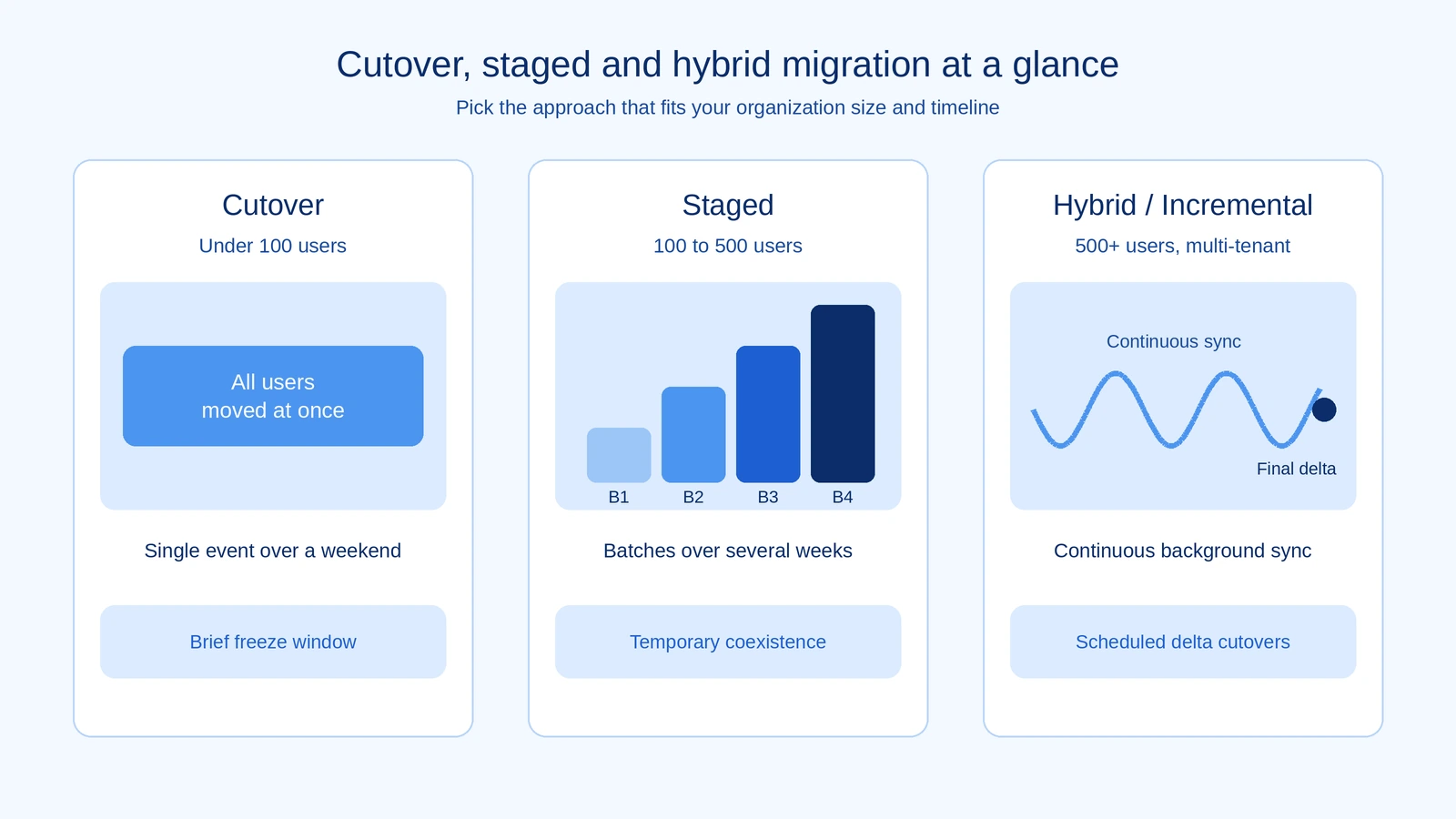
2)Cutover vs. Staged vs. Hybrid Migration Strategies
3)Native vs. Shefware Migration Tools for Microsoft
Step-by-Step Migration Plan and Best Practices
Phase 1 : Assessment and Tenant Preparation
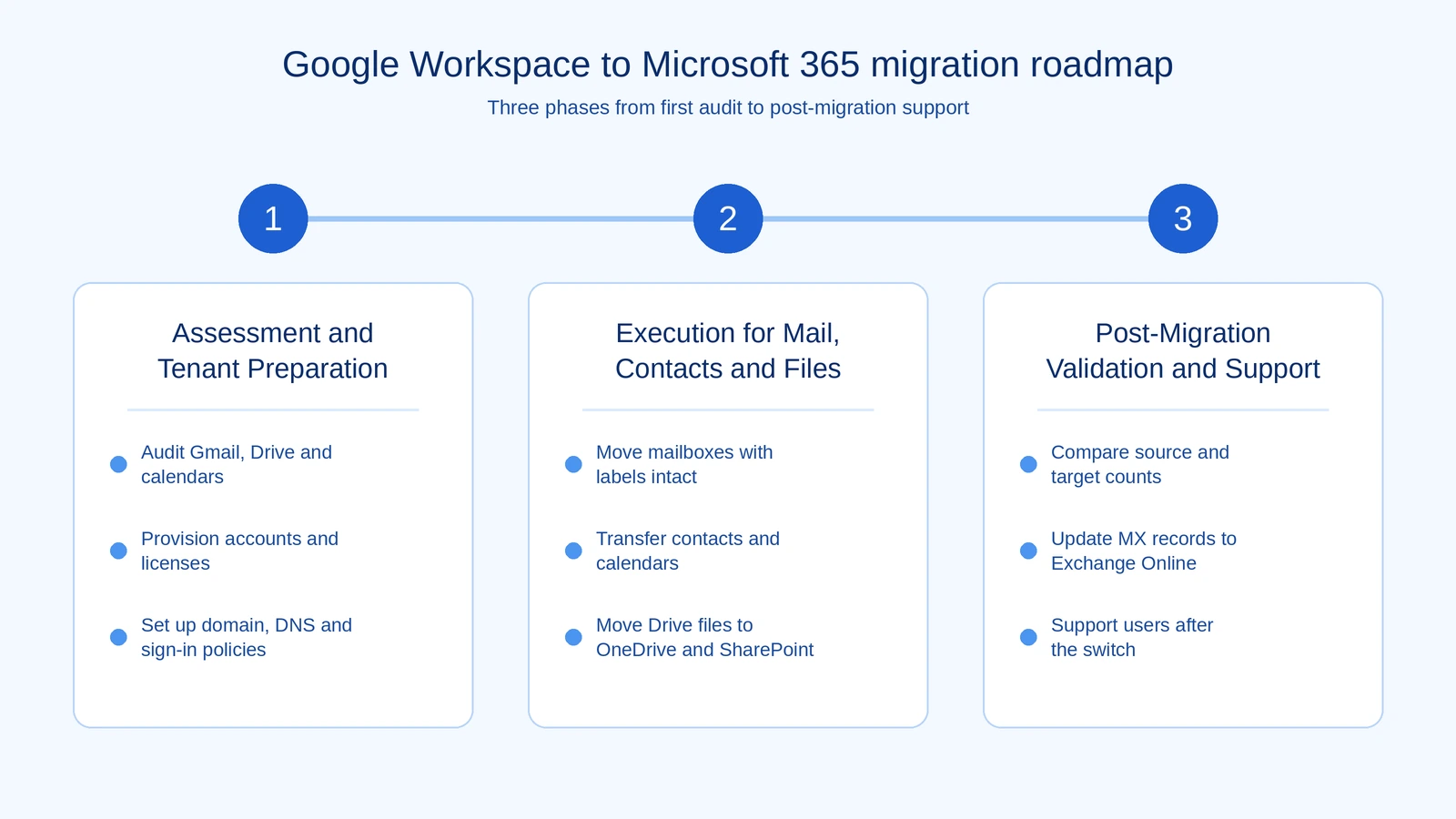
First, have a full assessment of all of the data you already have in Gmail, Google Drive, and shared calendars. Assign Users Targeted for Provision to Microsoft 365 and assign appropriate licenses. Set up domain settings, DNS records, and secure authentication policies on Microsoft 365 admin center before migrating production data.
Phase 2: Execution Strategy for Mail, Contacts, and Files
Move Gmail mailboxes to Exchange Online via cryptographic parsing to ensure the email metadata is preserved, along with folder structures and custom labels. Automatically deduplicate and map fields while moving Google Contacts and Calendars. Utilize solutions such as the Shefware Google Drive to OneDrive Migration tool that specialize in transitioning to OneDrive and SharePoint in order to maintain permissions. Use Cross Tenant Mailbox-shift tool of Shefware Office 365 Migration engine or directly import the PST files in Shefware Import PST to Office 365.
Phase 3: Post-Migration Validation and Support
Confirm integrity of data by comparing the log of extraction on source mailboxes with the count of the mailboxes on target – should be 0 bytes extracted. Change the MX record to route email to build.eolive.com. Another way for ensuring local compliance and to avoid data exposure issues is to set up local backups with Shefware - Office 365 Backup Suite. Offer focused user support and use guidance from experts to make sure that the post-migration move is successful.
Frequently Asked Questions
How long does a Google Workspace to Microsoft 365 migration typically take?
Migration time is dependent on data volume, number of users and bandwidth of the network. For an enterprise, we could have multiple batches of transfers spread across multiple weeks, with scalable provisioning engines to boot, while for small businesses, we would be doing transfers over a weekend.
What are the common migration issues and how can I avoid data loss?
Typical problems include hampers to throttle, email formatting problems, and permission problems with files. Pre-migration audits, solid error-logging features and data encryption parsing engines that maintain original mailbox structures are key to avoiding data loss.
How can I migrate Gmail to Exchange Online without downtime for users?
You can then have no downtime, providing you manage your server's synchronization in increments during regular business hours. Plan a delta sync event and official MX record cutover during any non-business hours to work the cutover seamlessly.
How do I preserve Google Drive file permissions and sharing when moving to OneDrive/SharePoint?
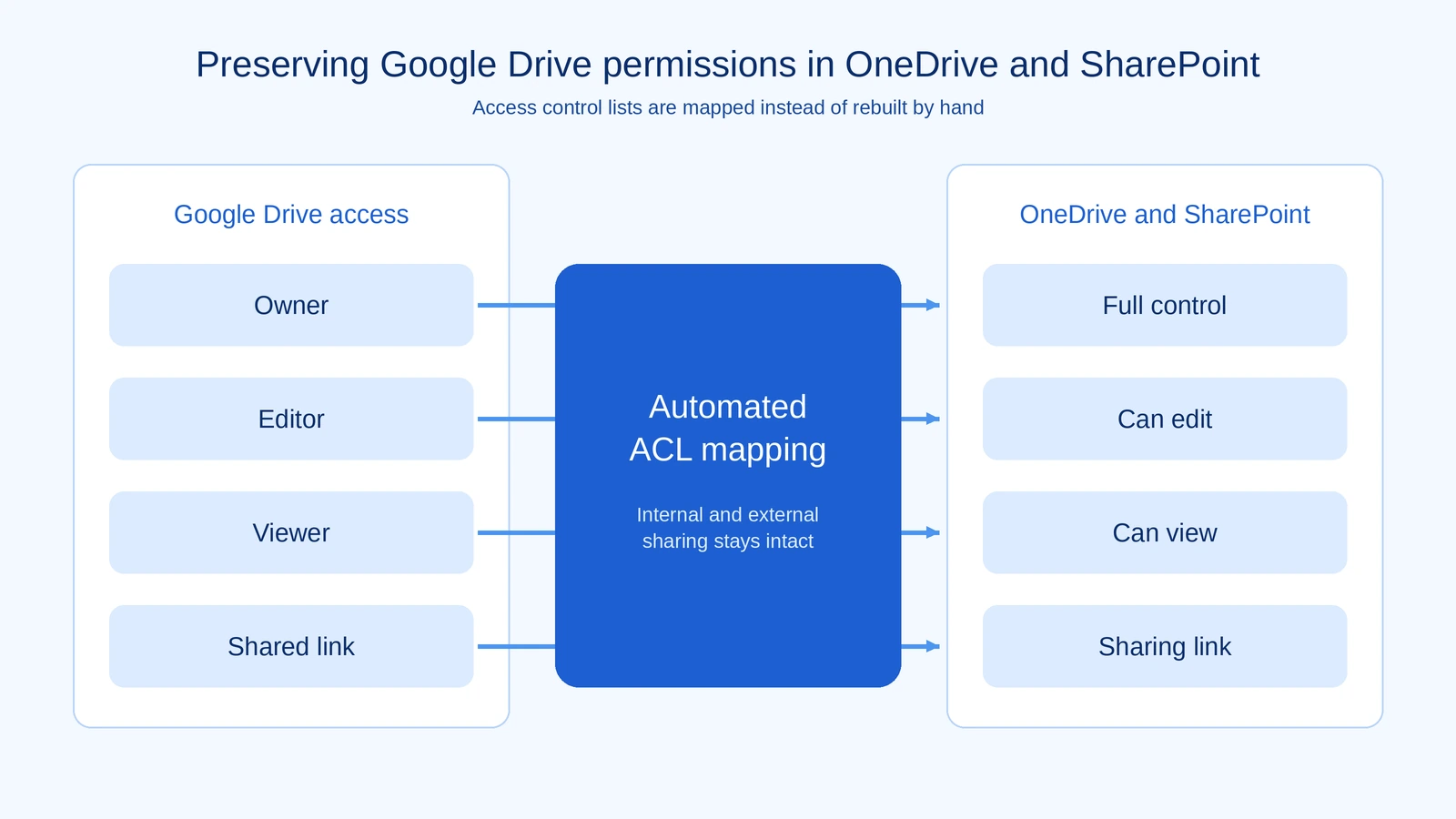
Advanced migration options integrate access control (ACL) lists from Google straight into the SharePoint and OneDrive permission setting. This means setup of internal and external document sharing links will be preserved following the move.
What steps should IT take to prepare users and devices before the migration?
An administrator should perform a Hardware & Software inventory, set up clear timelines, user training should be set up with Microsoft applications and a pre-configuration of the client devices with Outlook and OneDrive sync clients.
Conclusion
The process of moving from Google Workspace to Microsoft 365 involves careful planning, comprehensive tools, and strategic execution to ensure continuity. With an enterprise migration tool such as Shefware Google Workspace to Microsoft 365 Migration, you can guarantee no data loss, folder and structure integrity is maintained, and you receive support from experts at each step of the process. Shefware offers migration products that organizations can use to evaluate with a free trial that checks the performance of the products before committing to full-scale deployment.


Comments
Post a Comment