IMAP to Office 365 Migration: A Step-by-Step Guide for Small Businesses
If your business has been running email through Gmail, Zoho Mail, Yahoo, or another IMAP-based provider, and you've decided to move to Microsoft 365, the biggest worry usually isn't whether Office 365 is the right choice — it's whether you'll lose emails, break folder structures, or disrupt the business while making the switch.
This guide walks through an IMAP to Office 365 migration in plain terms: what it actually involves, the realistic ways to do it, and a step-by-step process you can follow without needing to be a migration specialist.
What Is IMAP to Office 365 Migration?
IMAP to Office 365 migration means moving mailbox data — emails, folders, and their structure — from an IMAP-based email account into a Microsoft 365 mailbox. IMAP (Internet Message Access Protocol) is the standard many providers use, including Gmail, Zoho Mail, Yahoo Mail, and email set up through Thunderbird.
Because IMAP accounts store mail on the provider's server and sync folders down to your email client, migrating to Office 365 isn't just about forwarding new emails going forward — it's about transferring the existing mailbox content itself, ideally with the same folder structure intact, so nothing looks different to the people using it day to day.
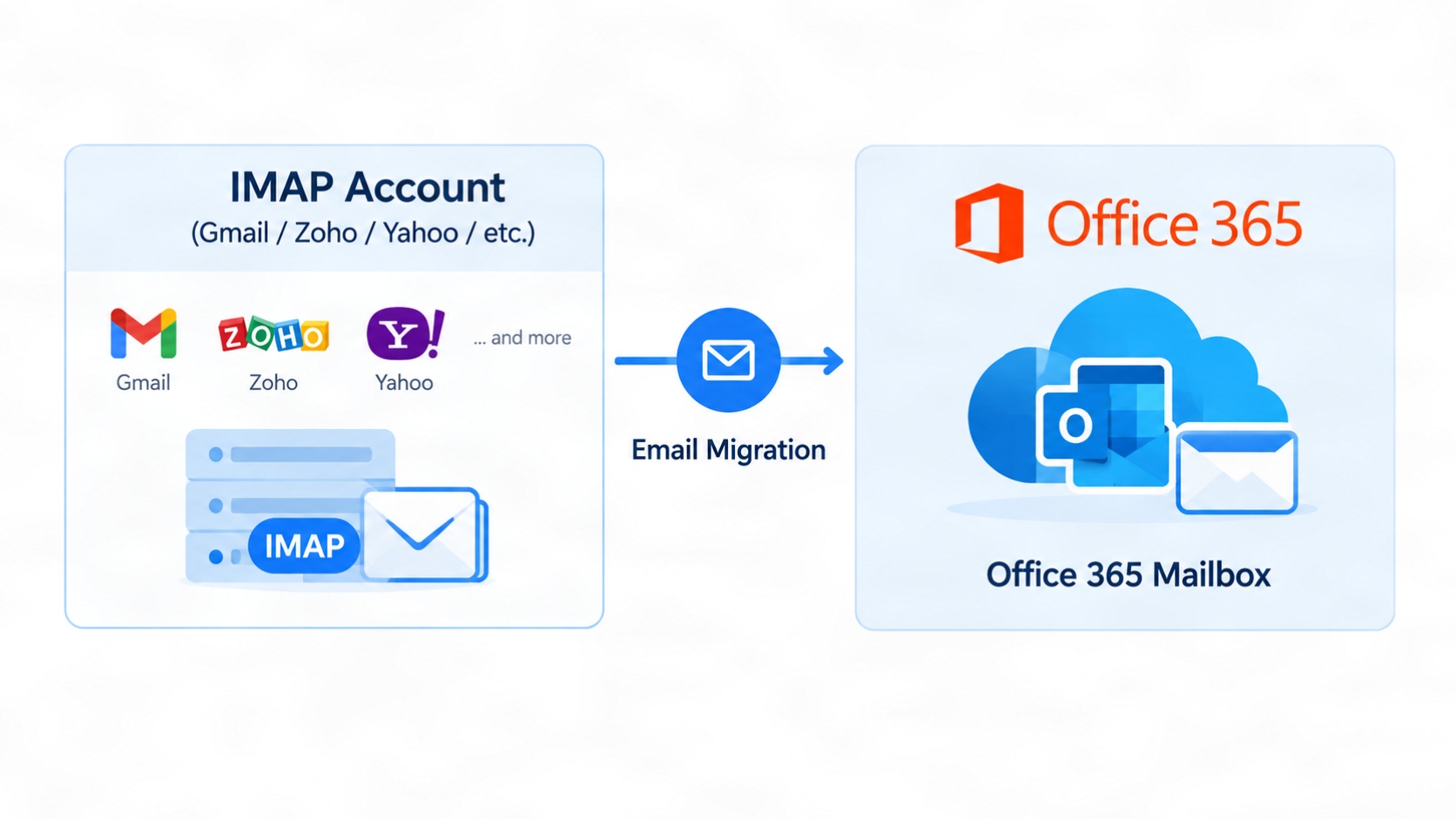
Email migration from an IMAP account (Gmail, Zoho, Yahoo) to an Office 365 mailbox.
Why Small Businesses Move from IMAP to Office 365
A few reasons come up repeatedly for small teams making this switch:
Consolidation. Businesses that grew using free or low-cost IMAP accounts often want a single, professional email platform tied to their domain, along with the rest of the Microsoft 365 suite (Teams, SharePoint, OneDrive).
Storage and reliability limits. Some IMAP providers cap mailbox size or don't offer the uptime guarantees a growing business needs.
Better admin control. Microsoft 365 gives an admin centralized control over multiple mailboxes, which is harder to manage across scattered personal or third-party IMAP accounts.
Security and compliance. Office 365 offers built-in security tooling that most free IMAP providers don't match at the same level.
Methods to Migrate IMAP to Office 365
Method 1: Manual Migration
A manual migration typically means configuring both the IMAP account and the Office 365 mailbox in a client like Outlook, then dragging and copying folders across, or using Outlook's built-in import/export function after exporting IMAP mail to a local file.
Limitations: This works for a single mailbox with a small amount of mail, but it doesn't scale. Manually copying folders risks broken hierarchy, missed subfolders, and duplicate or skipped messages. It also requires the mailbox to stay open and connected throughout, which isn't practical for a business migrating several accounts at once.
Method 2: A Dedicated IMAP to Office 365 Migration Tool
A dedicated migration tool connects directly to the IMAP account and Office 365 mailbox, then transfers mail programmatically — handling folder structure, filtering, and larger volumes more reliably than manual copying.
Limitations: This requires choosing and setting up a tool, and free or demo versions typically cap how much mail can be migrated per folder until a full license is used.
Step-by-Step Migration Process
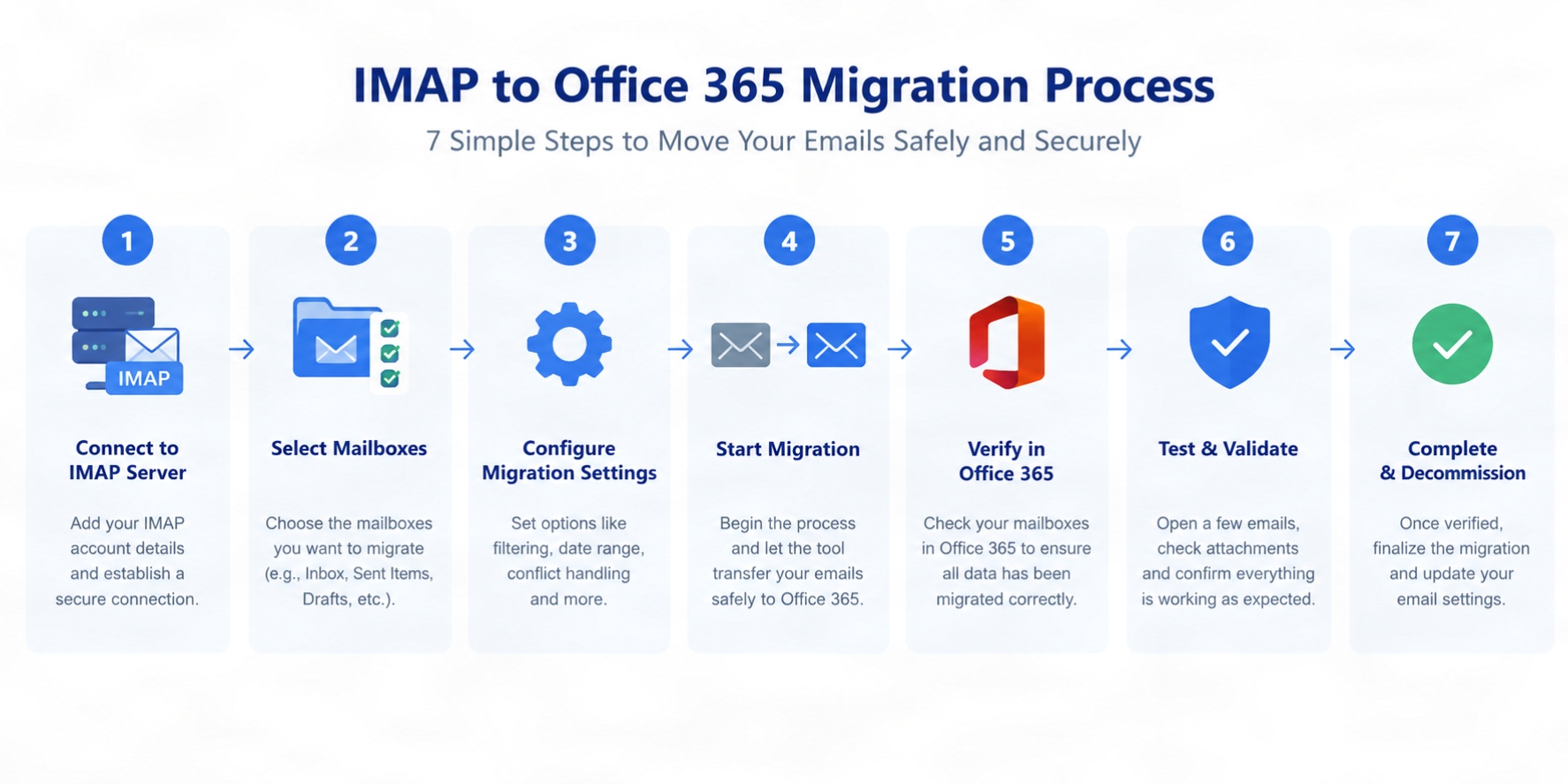
The seven-step IMAP to Office 365 migration process, from connecting to the IMAP server through completion and decommissioning.
Gather account details. Confirm the IMAP server address, port, and login credentials for each source account (Gmail, Zoho, Yahoo, or another provider), along with your target Office 365 credentials and permissions.
Decide on scope. Determine whether you need a full mailbox migration or only mail from a specific date range or set of folders — this matters for both time and mailbox storage.
Set up the destination. Make sure the Office 365 mailbox exists and is ready to receive data, with any custom target folder named the way you want it to appear.
Configure and run the migration. Whether manual or tool-based, connect the source IMAP account and destination Office 365 mailbox, apply any filters (date range, specific folders), and start the transfer.
Verify folder structure and counts. After migration, check that folder hierarchy matches the original and that message counts line up as expected.
Run an incremental pass if needed. If time has passed between the first migration and go-live, run a follow-up migration to catch any new mail that arrived in the IMAP account since the last pass.
Update mail clients and DNS. Once verified, point users' devices to the new Office 365 mailbox and, if you're changing the domain's mail routing, update MX records accordingly.
Comparison of Migration Methods
Common Mistakes to Avoid
Migrating everything at once with no filtering. This can overload the target mailbox with outdated or irrelevant mail that didn't need to move.
Not accounting for new mail during migration. If migration takes time, mail that arrives in the source account after the initial transfer can be missed without an incremental step. Understanding why backing up email matters before a migration can help avoid this kind of gap.
Skipping folder structure verification. A migration that "completes" isn't the same as one that preserved the original organization — always check subfolders, not just top-level ones.
Migrating during business hours without a plan. Even a smooth migration can cause temporary access issues; scheduling it for low-traffic hours reduces disruption.
Forgetting to test with one mailbox first. Especially with several accounts to migrate, testing the full process on one mailbox first catches problems before they affect everyone.
Best Practices for a Smooth Migration
Start with a single test mailbox before migrating the rest of the business.
Use date range and folder filters to avoid pulling in unnecessary or outdated mail.
Keep a migration report or log so you can confirm what moved and when.
Schedule the migration for off-peak hours to limit disruption to daily work.
Plan for an incremental follow-up migration to catch anything that arrived after the first pass.
Consider backing up your IMAP mailbox first as a safety net before starting the transfer.
Communicate the switch date to your team in advance so they know when to expect the change.
Where Shefware's IMAP to Office 365 Tool Fits
For small businesses migrating more than a mailbox or two, or wanting more certainty than a manual copy-and-paste process offers, the Shefware IMAP to Office 365 migration tool is built specifically for this transfer.
A few specifics relevant to a small business migration:
It migrates mailbox data from any IMAP client account — including Gmail, Zoho Mail, Yahoo, and Thunderbird — directly into Office 365.
Migration is designed to run with no data loss, which matters most when moving years of business correspondence.
An incremental migration feature picks up newly arrived mail in the source IMAP mailbox after the first migration pass, useful if there's a gap between initial migration and full cutover.
Date range and folder selection filters let you migrate only the mail that's actually needed, rather than everything by default.
The tool is compatible with all versions of Windows, so it fits into most small business IT setups without special requirements.
A schedule feature allows migrations to run automatically at a chosen time — useful for running transfers overnight or during low-traffic hours.
Batch migration via CSV supports moving multiple mailboxes from IMAP accounts to Office 365 in one operation, which matters once you're migrating more than one or two accounts.
You can add one or multiple IMAP accounts for migration, and assign each job a name to identify and monitor its progress.
A custom target folder name option lets you control how migrated mail appears inside the Office 365 mailbox.
Migration history and status are tracked in a detailed report that can be exported for review.
Folder hierarchy and structure are preserved, so the migrated mailbox looks and organizes the same way the original did.
The free version allows migrating 30 items per folder, which is enough to test the process on a sample mailbox before committing to a full migration.
This tool is best suited for small business owners or solo IT admins handling the migration themselves, especially when there's more than one mailbox involved or when preserving exact folder structure matters. For a single very small mailbox with only a handful of emails, a manual approach may still be reasonable — but for anything beyond that, a dedicated migration process reduces the risk of errors. The step-by-step working guide walks through the full setup if you want more detail before starting.
Conclusion
Moving from an IMAP-based email provider to Office 365 doesn't have to be a stressful process. For a single, small mailbox, a careful manual migration can work. For anything larger — multiple accounts, complex folder structures, or a business that can't afford dropped emails — a dedicated migration tool with filtering, scheduling, and incremental migration support makes the process far more predictable. Either way, testing with one mailbox first and verifying folder structure afterward are the two habits that prevent most migration headaches.
Frequently Asked Questions
Will I lose emails during an IMAP to Office 365 migration?
Not if the migration is done carefully. Manual migrations carry more risk of missed folders or duplicate messages, while a dedicated migration tool designed for no data loss reduces that risk significantly.
Can I migrate from Gmail or Zoho Mail specifically?
Yes. Gmail, Zoho Mail, Yahoo, and Thunderbird-managed accounts all use IMAP, so they can be migrated to Office 365 using the same general process.
Do I need Outlook installed to migrate IMAP to Office 365?
Not necessarily. Manual migration often uses Outlook as the go-between, but a dedicated migration tool connects directly to both the IMAP account and Office 365 without requiring Outlook to be running.
How long does an IMAP to Office 365 migration take?
It depends on mailbox size and the number of accounts. A single small mailbox might take under an hour; migrating several mailboxes with years of mail will take considerably longer, which is why scheduling and filtering matter.
What happens to new emails that arrive during the migration?
Without an incremental migration step, mail that arrives after the initial transfer can be missed. Running a follow-up incremental migration before final cutover catches anything new.
Can I migrate only certain folders instead of the whole mailbox?
Yes, most migration approaches — and dedicated tools in particular — support folder selection and date range filters so you can move only what's needed.
Is it possible to migrate multiple mailboxes at once?
Manually, this is slow and mailbox-by-mailbox. A dedicated tool that supports batch migration via CSV can handle multiple accounts in a single operation.


Comments
Post a Comment